Shopify Preorder Setup Checklist: What to Confirm Before You Open Sales
A practical Shopify preorder checklist for product setup, delivery promises, checkout limits, and customer communication before you start taking orders.

Published 9 min read
On this page
Before opening Shopify preorders, confirm four things: the exact variants customers can buy, the delivery promise you can support, the checkout paths that will work, and the message a customer sees before paying. A preorder is not simply an out-of-stock product left available for sale. It is a purchase option with its own product-page, payment, fulfillment, and support implications.
Shopify requires a preorder app for its preorder purchase option. The app controls the setup, while Shopify admin surfaces preorder information on the product and order pages. Use this checklist to prepare the offer before sending traffic to it.
1. Decide whether preorder is the right option for this stockout
A preorder works when you can describe what the customer is buying and give a defensible estimate of when it will ship. That could be a new product launch with a production date, a replenishment already confirmed with a supplier, or a made-to-order item with a defined production window.
It is a poor substitute for uncertainty. If the supplier has not confirmed quantity, a component is unavailable, or the team cannot explain the likely fulfillment window, start with a waitlist instead. A waitlist collects interest without taking payment for an item whose delivery is still unknown. ShopOpsy's Back In Stock & Preorder page describes the two jobs separately: alerts bring shoppers back when inventory returns, while preorder flows capture demand before fulfillment is available.
- Preorder: “This selected variant is expected to ship in the stated window.”
- Back-in-stock alert: “This variant is unavailable; tell me when it returns.”
- Do not offer either yet: “We do not have enough information to set an expectation.”
That sentence gives merchandising, support, and fulfillment teams the same operating rule. It also prevents a product from quietly moving between “sold out,” “preorder,” and “available” without a customer-facing explanation.
2. Set a delivery promise your team can actually keep
The delivery date or window is the central preorder decision. Shopify’s preorder guidance says merchants must have a reasonable basis for saying a product can ship within a certain time. If no date is clearly specified, the guidance says the merchant needs a reasonable belief that the product will ship within 30 days of purchase. If shipment will miss the promised time, Shopify says the customer must receive a revised shipment date and an explanation of their right to cancel or obtain a refund.
Treat that as an operations checkpoint, not copywriting. Build the promise from dates the team can inspect:
- Confirm the supplier’s production or inbound date.
- Add receiving, quality-control, and pick-and-pack time.
- Account for the shipping service and destination if the promise includes arrival rather than dispatch.
- Add a buffer that reflects the specific product risk, not an arbitrary phrase such as “soon.”
- Identify who changes the storefront message if the date moves.
Avoid presenting a precise calendar date when the underlying estimate is a broad range. “Ships by 18 September” makes sense when the item has a controlled milestone. “Expected to ship in late September” is more honest when receiving is the uncertain step. The important part is that the product page, checkout information, confirmation message, and support team use the same expectation.
3. Choose preorder variants deliberately
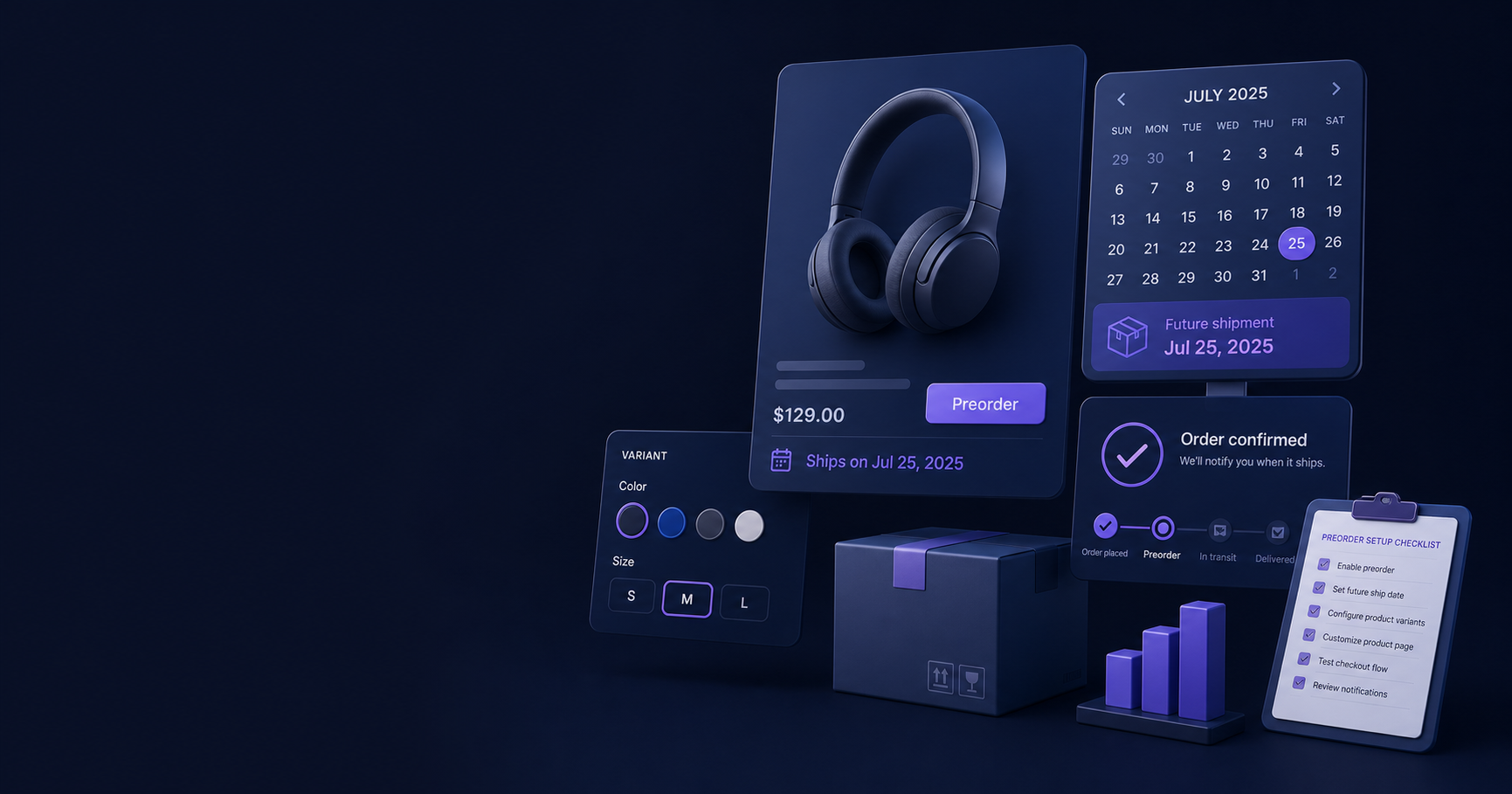
Preorder setup can apply at product or variant level. Do not turn on every variant because one size or color is delayed. Review the product’s variants one by one and make a simple launch sheet with SKU, option values, available quantity, preorder status, expected ship window, and owner.
This catches common mistakes:
- A popular size is ready to ship but is accidentally changed to preorder.
- One color has a later inbound date than the rest but shares a generic product-page message.
- A discontinued option remains selectable because its inventory setting was not reviewed.
- The preorder app is configured for the product while an excluded variant still appears in the theme selector.
Test the selection as a customer would. Switch each option on the published product page and check the call to action, preorder disclosure, price, and delivery message. If only a subset is available, the distinction must remain clear after a shopper changes variants. A correct setting in admin is not enough if the product page makes two fulfillment paths look identical.
4. Configure the preorder app, then check Shopify admin
Shopify’s current setup instructions are explicit: complete the setup in the preorder app first. Once it is installed and configured, preorder information becomes available in Shopify admin on the product page and the orders list.
The exact screens vary by app, but the operational questions do not. Confirm these items in the app configuration:
- Which products and variants receive the purchase option.
- Whether the customer can choose preorder only or preorder alongside a one-time purchase.
- The delivery policy or fulfillment timing attached to the offer.
- The billing policy, including whether the customer pays in full, pays a deposit, or pays later under the available configuration.
- The product-page disclosure and its location.
- The internal marker that lets the fulfillment team identify preorder orders.
Then open a configured product in Shopify admin and make sure the purchase option is visible where the team expects it. Open the orders list after a test order too. A preorder workflow fails quickly when support cannot distinguish a delayed purchase from a standard order or fulfillment cannot see the promised timing.
5. Read the checkout limits before you advertise the offer
Preorders do not behave like every other Shopify purchase. Shopify lists several current restrictions that can change the customer’s available payment path and promotion experience. For example, preorders are not supported on stores with customized checkouts; customers cannot use Shop Pay, Apple Pay, or Google Pay to purchase preorders; and local payment methods such as Klarna, iDEAL/Wero, and Sofort are also unavailable for preorders. Shopify also states that preorder products are supported only on the Online Store and Custom Storefront sales channels.
Pre-orders are currently available only to merchants using Shopify Payments or PayPal Express. Confirm that eligibility before selecting an app or planning the launch flow.
This is why a test purchase matters. A campaign can drive a shopper to a polished product page and still fail at payment if the team assumed an accelerated wallet would be available. Test in the actual store configuration, not only in an app demo.
Shopify also notes that customers cannot combine different purchase options on the same product in one checkout. A preorder product cannot also be purchased as a subscription or a try-before-you-buy order. Buy X get Y discounts are not supported by preorders. Check the product’s current selling options and promotional rules before launch rather than discovering a conflict after ads or email are live.
Make a short channel checklist:
| Check | What to verify |
|---|---|
| Sales channel | The preorder is offered on Online Store or Custom Storefront, as intended. |
| Payment | The team has tested a normal supported checkout path and explained any unavailable wallets. |
| Promotions | No Buy X get Y promotion depends on the preorder item. |
| Purchase options | The variant is not being combined with an incompatible subscription or try-before-you-buy offer. |
| Mixed cart | The team has tested a cart containing the planned preorder mix. |
6. Test payment and fulfillment terms with a real scenario
A preorder can involve a full payment, a deposit, or a later payment depending on the configured terms. Shopify says that, at checkout, the preorder app displays preorder information. If a partial deposit is collected, the amount due at checkout appears in the order summary and the remaining amount is due later. The customer must confirm that they understand they are buying a product with a purchase option before they can complete payment.
Walk through the scenario with figures and dates rather than relying on labels. If a customer buys two preorder products with specific payment due dates, Shopify says the earliest due date applies to all products. If one product is due on fulfillment, that term takes priority. Deposits for multiple preorder products are combined and charged at checkout.
Those rules affect both customer expectations and support scripts. Run at least these tests before launch:
- One preorder variant with the usual delivery and payment terms.
- A cart with the planned combination of preorder items.
- A cart with an in-stock item and a preorder item, if the offer allows it.
- A variant change on the product page before checkout.
- The order record after purchase, including the information available to fulfillment and support.
Record screenshots or a short internal checklist for the approved path. When an app setting changes later, rerun the same tests instead of assuming the previous result still applies.
7. Build the customer message around the decision points
The useful preorder message is not a long disclaimer. It answers the questions a careful shopper asks before they pay:
- Is this item available now or being sold before it ships?
- Which variant does this apply to?
- When should it ship or arrive?
- What will I pay today, and is another payment due later?
- Where can I get an update or cancel if the date changes?
Put the concise answer near the buying controls, then repeat the key timing at checkout and in the order confirmation. Avoid vague wording such as “limited release” when the actual issue is a later fulfillment date. A shopper needs delivery context, not manufactured scarcity.
Prepare the post-purchase message at the same time. If the shipment date moves, someone should know the trigger for contacting affected customers, the revised date to share, and the cancellation or refund path. This is a practical service process, not legal advice; use the requirements that apply to your business and locations, and review Shopify’s guidance and your own policies before launch.
8. Set an exit rule before the preorder goes live
A preorder should end cleanly. Decide in advance what causes the product to return to normal availability: received inventory, a date cutoff, a preorder quantity cap, or a supplier confirmation. Assign one owner to change the purchase option and one owner to verify the storefront afterward.
When inventory arrives, check more than the stock count. Confirm that the preorder message is gone or updated, the correct variants are available, and new customers do not see an obsolete ship date. Review the oldest preorder orders first so fulfillment follows the commitment already made.
A small operating log is enough: launch date, promised window, affected SKUs, customer message, owner, and exit condition. It turns a one-off launch into a process the team can repeat without hiding important decisions in an app setting.
Frequently asked questions
Do I need an app to set up Shopify preorders?
Yes. Shopify’s current preorder documentation says you need to install a preorder app and complete setup in that app before managing the preorder purchase option in Shopify admin.
Can customers use Shop Pay for a Shopify preorder?
No. Shopify currently lists Shop Pay, Apple Pay, and Google Pay among the accelerated checkouts customers cannot use for preorders. Test the supported checkout path on your own store before advertising the offer.
Should an out-of-stock product always become a preorder?
No. Use a preorder only when the team can support a clear fulfillment expectation. If the return date is not reliable, a back-in-stock alert is usually the more honest way to capture interest without taking payment.
Sources
- Setting up pre-orders — Shopify Help Center, accessed 5 August 2026.
- Pre-orders overview — Shopify Help Center, accessed 5 August 2026.
- Managing pre-orders — Shopify Help Center, accessed 5 August 2026.
- Pre-orders and try before you buy — Shopify developer documentation, accessed 5 August 2026.