Google Consent Mode v2 on Shopify: Setup and Testing Guide
How Google Consent Mode v2 works on a Shopify store, how your cookie banner’s choice reaches GA4 and Google Ads, and a checklist to test it in Tag Assistant.

Published 11 min read
On this page
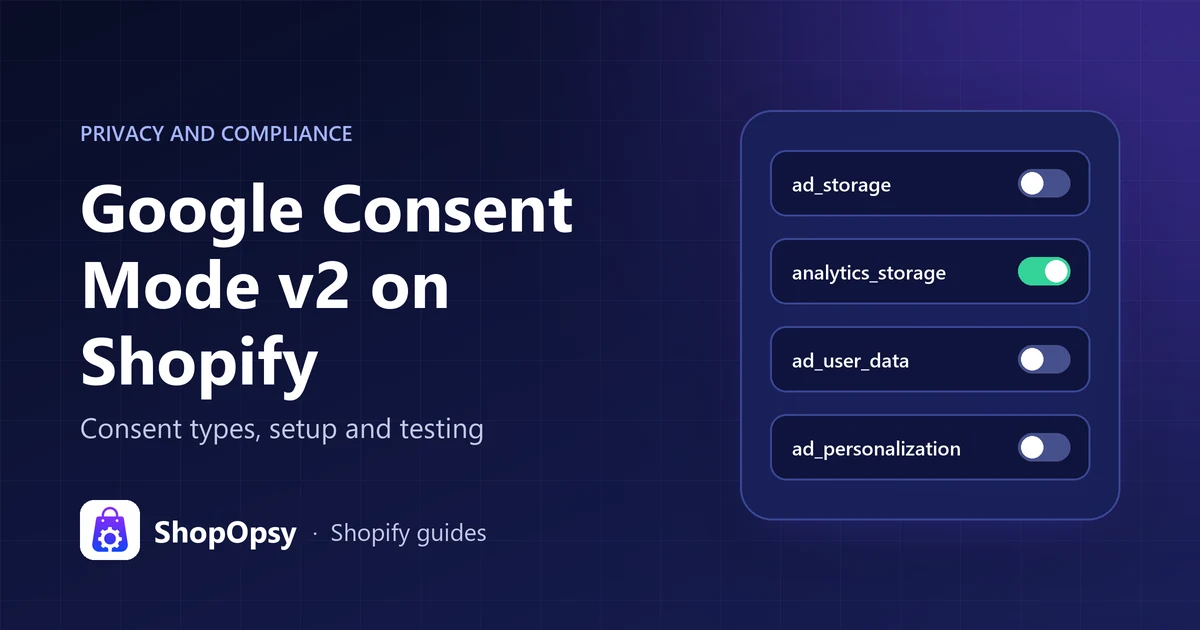
Google Consent Mode v2 on Shopify is how your cookie banner tells Google Analytics 4 and Google Ads what a visitor agreed to, using four consent types: ad_storage, analytics_storage, ad_user_data and ad_personalization. On Shopify, the choice usually travels from a banner connected to Shopify's Customer Privacy API to the Google & YouTube app, or from a banner app that sets consent for your Google tags directly. Either way, default to denied for visitors who must opt in, update the state when they choose, and prove it in Tag Assistant before you trust your reports.
This guide is general information, not legal advice.
What is Google Consent Mode v2?
Consent mode lets a website adjust how Google tags behave based on the visitor's consent choices (consent mode overview). It is not a banner. Google Ads Help says consent mode receives the choice from your cookie banner or widget and passes it to Google tags (About consent mode).
"v2" refers to Google's November 2023 update, which added ad_user_data and ad_personalization. Google's setup guide for websites asks sites that already used consent mode to upgrade so both signals are sent.
In code, consent mode is two commands: a default on every page before any Google tag sends data, and an update when the visitor chooses.
// Before the Google tag loads
gtag('consent', 'default', {
  ad_storage: 'denied',
  ad_user_data: 'denied',
  ad_personalization: 'denied',
  analytics_storage: 'denied',
  wait_for_update: 500,
});

// After the visitor accepts analytics and marketing
gtag('consent', 'update', {
  ad_storage: 'granted',
  ad_user_data: 'granted',
  ad_personalization: 'granted',
  analytics_storage: 'granted',
});
Order matters: Google warns that defaults won't work if the consent code runs out of order. A banner app or Shopify integration usually writes this code, but you need to know what it should produce to test it.
The consent types and what each one controls
Google lists seven consent types. GA4 and Google Ads measurement depend on the first four.
| Consent type | What it covers (Google's definition) | Effect when denied | Usual banner category |
|---|---|---|---|
ad_storage | Advertising storage, such as cookies | No new advertising cookies are written and existing ones are not read | Marketing |
ad_user_data (v2) | Sending user data to Google for online advertising | Personal data for advertising is off, including user_id and hashed data for enhanced conversions | Marketing |
ad_personalization (v2) | Personalized advertising | Remarketing in Google Ads, Display & Video 360 and Search Ads 360 receives no data | Marketing |
analytics_storage | Analytics storage, such as measuring visit duration | First-party analytics cookies are not read or written | Analytics |
functionality_storage | Storage that keeps the site working, such as remembered settings | Not detailed in Google's overview | Preferences or necessary |
personalization_storage | Personalization, such as recommendations | Not detailed in Google's overview | Preferences |
security_storage | Authentication, fraud prevention and user protection | Not detailed in Google's overview | Necessary |
The category column is a common mapping, not a Google rule. Match it to the categories your banner and cookie policy use.
Basic vs advanced consent mode
The difference is whether Google tags load before the visitor chooses.
| Basic consent mode | Advanced consent mode | |
|---|---|---|
| Google tags before a choice | Blocked until the visitor interacts with the banner | Load when the page opens, with consent defaulting to denied |
| Visitor declines | Nothing is sent to Google, not even the consent status | Tags send cookieless pings with the consent state and non-identifying information |
| Google Ads conversion modeling | General model | Advertiser-specific model |
| GA4 behavioral modeling | Not eligible, because Google requires tags to load before the consent dialog | Possible once the property meets Google's thresholds |
GA4's thresholds are concrete. Google's behavioral modeling article requires at least 1,000 events per day with analytics_storage denied for at least 7 days, and at least 1,000 daily users with it granted for at least 7 of the previous 28 days. A small store may not reach those numbers.
Basic mode has a cost too. Google's EEA consent mode update notes that when tags are blocked until the visitor interacts, Google can't verify consent choices, which may lead to data loss. Whether cookieless pings before consent are acceptable for your store is a legal question for a qualified professional. Whichever you pick, describe it in your Shopify privacy policy.
Why Consent Mode v2 matters for EEA and UK traffic
Google's EU user consent policy covers end users in the European Economic Area (EEA), the UK and Switzerland. It requires consent for cookies or local storage where legally required, and for using personal data to personalize ads. It also asks you to keep consent records, explain how to revoke consent, and identify each party that may collect or use the data.
Google's EEA update adds that advertisers using Google tags for measurement, ad personalization and remarketing must collect consent from EEA users and share consent signals with Google, including for Google Analytics data used in Google Ads. Google also says that since early March 2024, GA4 properties that took no action only include users outside the EEA in audiences for linked advertising products (Verify and update consent settings).
If you run remarketing or GA4 audiences in Google Ads with European traffic, missing ad_user_data and ad_personalization signals cost you audiences and measurement. Consent mode only transmits a choice; collecting a valid one is the banner's job, which our Shopify cookie banner guide covers. For the rest of what stays with you as the merchant, from your privacy policy to data requests, see our guide to Shopify GDPR compliance.
How consent reaches Google tags on Shopify
Shopify's Customer Privacy API is the store's record of the visitor's choice. Banners record consent with setTrackingConsent(), code checks it with methods such as marketingAllowed(), and a visitorConsentCollected event fires when it changes. In regions configured to require consent, non-essential purposes stay off until the visitor agrees; elsewhere, all purposes are allowed by default. Our guide to the Shopify Customer Privacy API explains its four purposes, consent regions and how to check them in the browser console.
Shopify's own cookie banner passes consent to this API automatically. With a third-party banner app, Shopify's customer privacy guide says to use the same consent regions in Settings > Customer privacy and in the app, or non-essential data can be processed before consent. Shopify's customer privacy overview adds that event data sent to Google from customers such as those in the EEA won't be used for personalized advertising unless Consent Mode v2 is active and valid consent is obtained.
The choice then reaches Google in one of three common ways.
| Setup | What sets Google consent | What to watch |
|---|---|---|
| Google & YouTube app with a banner connected to the Customer Privacy API | The app's Google tags, from Shopify's consent state | Confirm the default and update values in Tag Assistant |
| Google tag or Tag Manager loaded by the theme, with a banner app that sets consent | The banner app | The default must run before the Google tag, from one source only |
| Tag Manager inside a Shopify custom pixel | Your own pixel code | Consent code is your responsibility, and Tag Assistant's tag troubleshooter can't see it |
Setup 1: the Google & YouTube app
Google's page Set up Shopify to obtain user consent says to use a consent tool that integrates with Shopify's Customer Privacy API. With the Google & YouTube app handling conversion tracking, consent mode should then work automatically, and with Shopify's built-in banner it is enabled once the banner is on.
The pages we checked don't say whether the app uses basic or advanced mode, so check what it sends in Tag Assistant. Google's Shopify tag setup article also tells you to remove legacy and duplicate tags. An old GA4 snippet in the theme plus the app means double counting and two sources setting consent; the Shopify GA4 conversion tracking checklist covers the clean-up.
Setup 2: a banner app that sets consent for your Google tags
When a Google tag or Tag Manager container loads from the theme or an app embed, the banner app must set the default before the tag runs. For example, on the Advanced plan Cookify sends Consent Mode v2 signals to GA4 and Google Ads in basic mode. Before Google tags load, it sets the four core types plus functionality_storage and personalization_storage to denied, or to the visitor's saved choice. After the choice, analytics controls analytics_storage, marketing controls the three ad types and preferences controls the other two. The choice is also passed to Shopify's Customer Privacy API.
Setup 3: Google Tag Manager in a custom pixel
Shopify says a custom web pixel needs a code snippet to activate Consent Mode v2. It documents adding Tag Manager as a custom pixel under Settings > Customer events, where it runs in Shopify's sandbox. The example code sets all four consent types to granted, and Shopify warns it may not match what your store needs, so don't ship it unchanged.
Each custom pixel has a Permission setting, Required or Not required, for marketing, analytics and preferences. Set the purposes the pixel needs to Required, or read the visitor's real choice with init.customerPrivacy and the visitorConsentCollected subscription in Shopify's pixel privacy docs. Tag Assistant's Troubleshoot tag feature doesn't detect Google tags in a custom pixel, so test this setup with GA4 DebugView and your browser's network panel. Our guide to Shopify customer events and custom pixels covers each pixel privacy setting and how to test a pixel with Shopify's Pixel Helper.
How to test Consent Mode v2 on your Shopify store
Write down the expected result first, so a pass or fail is obvious.
| Scenario | Tag Assistant consent state | GA4 DebugView |
|---|---|---|
| Page loads, no choice yet | Default: denied for all four types | No events |
| Visitor rejects all | Stays denied | No events |
| Visitor accepts all | Update: granted for all four types | Events appear |
| Visitor allows analytics only | analytics_storage granted, ad types denied | Depends on how your banner loads GA4 |
Google's DebugView article confirms that events don't show in debug mode when consent mode is in place and the visitor hasn't consented to analytics cookies. Then work through the checks:
- List every source of Google tags: the Google & YouTube app, theme code, app embeds, Tag Manager and custom pixels. Remove duplicates.
- Start a clean session inside a consent region. Use a private window and a location inside your banner regions, for example through a VPN. Google's Tag Assistant troubleshooting guide suggests simulated locations in Chrome for regional defaults.
- Check the default before touching the banner. In Tag Assistant, open the earliest Consent event.
ad_storage,ad_user_data,ad_personalizationandanalytics_storageshould be set, with the On-page Default column showing denied. An empty Consent tab means consent mode isn't running on that page. - Watch the network panel before the choice. Basic mode should show no Google tag requests yet. In advanced mode, requests carry consent parameters; Google says
gcstransmitsad_storageandanalytics_storage. - Reject all. Nothing should switch to granted, and DebugView (Admin > Data display > DebugView in GA4) should stay empty.
- Accept all in a new private window. The On-page Update column should show granted, the Tags tab should show tags firing, and your events should appear in DebugView.
- Test partial choices and withdrawal. Allow analytics only, then marketing only, then reopen the preferences and reject. Google says visitors must be able to move consent both ways.
- Move through the store and checkout. Each new page should start from the saved choice; Google warns that a missing update on a transition page can drop key data. Place one test order with consent accepted and one with it rejected.
- Cross-check Shopify's record. In the browser console, run
window.Shopify.customerPrivacy.currentVisitorConsent()where the API is loaded. It returns yes, no or an empty value per purpose, which should match the banner. - Repeat from outside your consent regions, where Shopify allows all purposes by default.
- Check Google's status a few days later. A Google Ads conversion action's Diagnostics tab should show "Consent mode is implemented", which can take 48 hours (Verify consent mode implementation). In GA4, open Admin > Data collection and modification > Consent settings; Google says notifications there can take 48 to 72 hours to refresh.
Most failures show up in steps 3, 8 and 9: a default set after a tag already ran, two sources setting the default, or banner regions that don't match Shopify's. Rerun the list after any banner, theme or Google change. Consent Mode v2 is on Cookify's Advanced plan; see the pricing page for what each plan includes.
Frequently asked questions
Does Shopify's built-in cookie banner work with Consent Mode v2?
Google's Shopify consent page says consent mode is enabled automatically once you turn on Shopify's built-in banner, and that it should work automatically for Google & YouTube app conversion tracking. Shopify describes its banner as governing Shopify-specific tools, including Shopify Pixels, so check separately any Google tag your theme loads directly.
Do I need Consent Mode v2 if I don't sell to Europe?
Google's EU user consent policy covers visitors from the EEA, the UK and Switzerland. Without that traffic it may not apply, but other privacy laws might, so ask a qualified professional what covers your store.
Why did my GA4 sessions drop after adding a consent banner?
Shopify warns that collecting data only after consent can show up as fewer sessions and changed conversion rates. GA4's behavioral modeling only fills that gap for properties using advanced mode that meet Google's thresholds.
Sources
- Consent mode overview — Google for Developers, accessed 22 October 2026.
- Set up consent mode on websites — Google for Developers, accessed 22 October 2026.
- Troubleshoot consent mode with Tag Assistant — Google for Developers, accessed 22 October 2026.
- About consent mode — Google Ads Help, accessed 22 October 2026.
- Updates to consent mode for traffic in European Economic Area (EEA) — Google Ads Help, accessed 22 October 2026.
- Set up Shopify to obtain user consent — Google Ads Help, accessed 22 October 2026.
- Verify consent mode implementation — Google Ads Help, accessed 22 October 2026.
- Shopify: Set up your Google tag — Tag Manager Help, accessed 22 October 2026.
- EU user consent policy — Google, accessed 22 October 2026.
- Verify and update consent settings in Google Analytics — Google Analytics Help, accessed 22 October 2026.
- Behavioral modeling for consent mode — Google Analytics Help, accessed 22 October 2026.
- Monitor events in DebugView — Google Analytics Help, accessed 22 October 2026.
- Configuring customer privacy settings — Shopify Help Center, accessed 22 October 2026.
- Understanding customer privacy settings in your Shopify admin — Shopify Help Center, accessed 22 October 2026.
- Create a Google Tag Manager custom pixel — Shopify Help Center, accessed 22 October 2026.
- Manage your custom pixels — Shopify Help Center, accessed 22 October 2026.
- Customer Privacy API — Shopify developer documentation, accessed 22 October 2026.
- Pixel privacy — Shopify developer documentation, accessed 22 October 2026.