Shopify Cookie Banner: Built-In Banner or a Consent App?
Where Shopify’s built-in cookie banner is set up, which trackers it covers, when a consent app is the better fit, and how to test that trackers really wait for consent.

Published Updated 11 min read
On this page
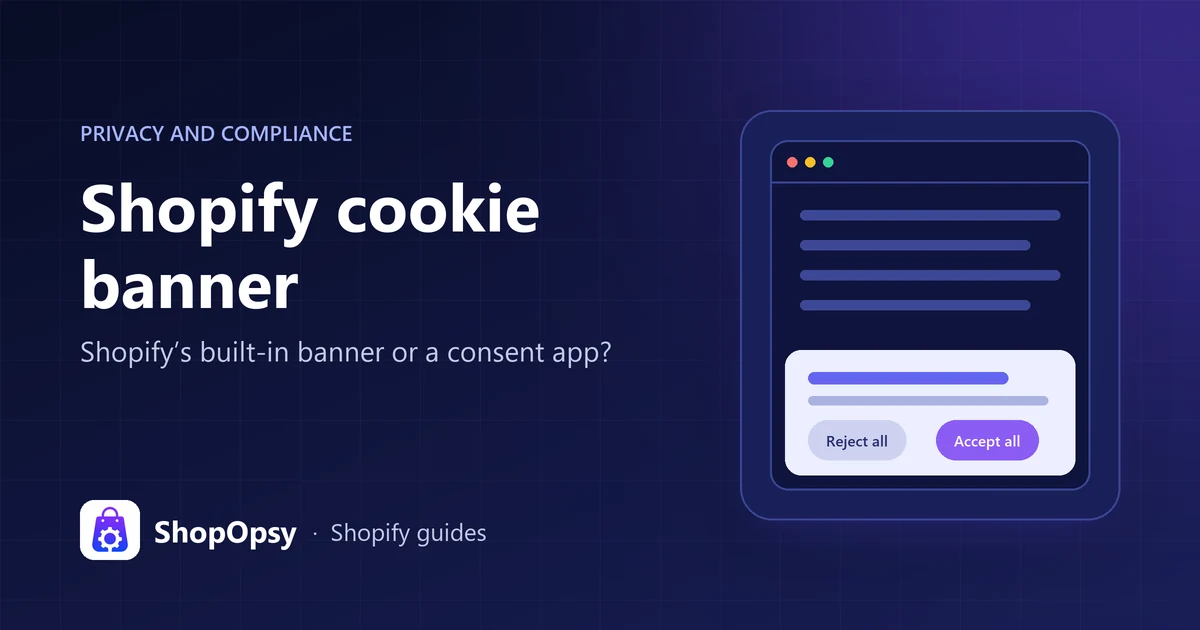
The Shopify cookie banner is built into Shopify admin: go to Settings > Customer privacy > Cookie banner, publish a privacy policy, then choose the regions, text, colors and position. It covers Shopify's own cookies and the pixels that run through Shopify, and it passes each visitor's choice to Shopify's Customer Privacy API so apps can follow it. If trackers load outside that system, such as scripts pasted into theme code, or you need extras such as Google Consent Mode on tags you manage or consent records older than 30 days, a consent app or custom logic is the better fit.
This guide is general information based on Shopify's documentation and regulator guidance, not legal advice.
Does Shopify have a cookie banner?
Yes. The cookie banner is part of Shopify's customer privacy settings in admin, not a separate app. Shopify's customer privacy settings guide says the banner is configured for UK and EEA visitors by default when those are active markets, and that it can appear on storefront, cart, checkout and customer account pages.
A few details that matter in 2026:
- Automated settings are on for new stores. Since a July 2024 update, automation can generate your privacy policy and add the cookie banner, keeping both current. Turn it off to edit the banner yourself.
- The banner is translated. Shopify shows it in the visitor's language, with default text in 32 languages you can edit with a translation app such as Translate & Adapt.
- Customer account pages need a custom domain. Banners ask for consent on order status and profile pages only when customer accounts use a custom domain.
- Outside opt-in regions it is off by default. For regions such as the US, Shopify offers a data sharing opt-out page instead. You can still turn the banner on anywhere.
What a cookie banner needs to do
Before comparing tools, agree on the job. EU and UK regulators describe broadly the same baseline:
- Trackers wait. The EDPB's cookie banner taskforce report recalls that cookies requiring consent cannot be set without a positive action from the user.
- Reject is as easy as accept. A vast majority of authorities in that taskforce saw an accept button with no reject option on the same layer as an infringement. The UK ICO's consent guidance also asks that refusing is as easy as accepting.
- Choices are granular and unticked. Pre-ticked boxes do not give valid consent, and the ICO expects separate options per purpose, such as analytics and advertising.
- People can change their mind. Withdrawing consent should be as easy as giving it, and the ICO says you must be able to show that consent was given.
Rules differ by country. In the UK, the ICO's list of exceptions includes a statistical purposes exception for some analytics, with conditions, while online advertising still needs consent. Ask a qualified professional which rules apply to your store.
How to set up Shopify's built-in cookie banner
These steps follow Shopify's Help Center as of October 2026. Labels can differ slightly between admin versions.
- Publish a privacy policy first. Shopify shows a cookie banner only once one is published. Our guide to the Shopify privacy policy covers what it should say.
- Go to Settings > Customer privacy and click Cookie banner.
- In Regions and content, keep Use automated settings on to follow Shopify's recommended regions and wording. To choose your own, click Edit in the Regions or Content section, make your changes, click Done, then Save.
- Adjust the banner's appearance, including colors and preferences, then click Save.
- In the Position section, choose where the banner appears and click Save. Click View to preview it on your store.
Shopify's guide says visitors can change their choice later from your store's policies section or a Cookie preferences link in the footer menu. Check that your footer actually shows it.
What Shopify's banner controls, and what it doesn't
Shopify says the built-in banner governs Shopify-specific tools, including Shopify's cookies and Shopify Pixels. In practice:
- Pixels in Customer events. App pixels and custom pixels in Settings > Customer events run through Shopify's pixel manager. The pixels overview says that in markets that require consent, they run only when visitors have given the permissions the pixel needs. New pixels require Marketing and Analytics permissions by default.
- Shopify surfaces and apps that read consent. The Customer Privacy API applies the choice to Shopify-managed surfaces such as pixels, audiences and checkout, and apps that check the API can follow it too.
What it does not automatically hold back: third-party cookies or pixels installed manually, or added by apps outside Shopify's pixel system. For those, Shopify says you may need a third-party banner or custom logic. Typical examples are a tag snippet pasted into theme.liquid or an app script that loads without checking consent.
How apps and pixels read consent
The Customer Privacy API is a browser JavaScript API. Shopify's banner passes each choice to it automatically, and a third-party banner should write to it too. It tracks four purposes: analytics, marketing, preferences and sale of data, which code checks with methods such as analyticsProcessingAllowed() and marketingAllowed(). In regions that require consent, non-essential purposes stay disallowed until the visitor consents; elsewhere, all are allowed by default. Our Shopify Customer Privacy API guide covers each method, the defaults by region and how to check them in the console.
Consent should be recorded only when a visitor acts, and code should use the API rather than read Shopify's cookies. Shopify stopped setting the _shopify_y and _shopify_s storefront cookies from 1 January 2026, so older scripts that read them need updating. Inside the pixel sandbox, the pixel privacy docs say a pixel loads only when the visitor has given every permission it declares as required.
When the built-in banner is enough
Shopify's own banner is a sensible choice when all of these are true:
- Your tracking runs as app pixels or custom pixels in Customer events, with no snippets hard-coded in your theme.
- The regions Shopify configures and its default translations match where and in which languages you sell.
- Shopify's options for text, colors, preferences and position are enough for your brand.
If a hard-coded tag is the only thing in the way, try moving it into a custom pixel first; our guide to Shopify customer events and custom pixels shows how. Once everything runs through Customer events, the built-in banner may cover it.
When you need a consent app or custom logic
Look beyond the built-in banner when one of these applies:
- Scripts outside Shopify's pixel system. If a tag loads from theme code, or from an app that ignores the Customer Privacy API, the built-in banner will not stop it.
- Google Consent Mode v2 on tags you manage. Shopify's privacy settings overview says event data from EEA visitors isn't used for personalized advertising unless Consent Mode v2 is active and valid consent is obtained, and that custom web pixels need a code snippet to activate it. Google's consent mode overview is clear that consent mode is not a banner: it passes your banner's choice to Google tags. Our Consent Mode v2 guide for Shopify covers the setup.
- Consent records older than 30 days. With Shopify's cookie banner, Shopify's May 2025 changelog says merchants can access an audit log of consent preferences given in the past 30 days. The
consentId()method returns the visitor's consent ID, which Shopify's Customer Privacy API reference says can be used to check their history in that audit log. A consent app may keep its own records, so check what yours stores and for how long. - More languages or full control over wording than the defaults give you.
ShopOpsy's own app, Cookify, is built for these cases. It holds supported trackers, such as Google tags, Meta Pixel, TikTok Pixel and Klaviyo, until the visitor gives consent, and passes every choice to Shopify's Customer Privacy API. Translations come with its paid plans; Google Consent Mode v2, country targeting and consent logs are on Advanced; and there is a Free plan. It doesn't hold script tags written directly into theme code, so load those through Google Tag Manager or Customer events instead.
Built-in banner or consent app: side by side
| Question | Shopify's built-in banner | Consent app |
|---|---|---|
| Where you set it up | Settings > Customer privacy > Cookie banner | The app's own settings |
| Extra install | None | An app from the App Store's cookie consent category |
| Regions | Automated (UK and EEA when active markets) or your own list | Set in the app, then matched in Shopify admin |
| Shopify cookies and Customer events pixels | Covered | Only if the app writes choices to the Customer Privacy API |
| Scripts in theme code, or apps that ignore consent | Not automatically | Depends on what the app can block; test it |
| Google Consent Mode v2 | Banner captures consent; custom web pixels need a snippet | Varies; check defaults are set before Google tags load |
| Choices by category | Preference options in banner settings | Varies; check optional categories start off |
| Translations | Default text in 32 languages, editable | Varies by app |
| Consent records you can review | Audit log of consent preferences from the past 30 days | Varies; check what is stored and for how long |
If you use a consent app, set up Shopify to match
Shopify gives specific steps for third-party banners, and skipping them is a common reason trackers fire too early:
- Install the consent app, turn on its banner and set its regions.
- In Shopify admin, go to Settings > Customer privacy and click Cookie banner.
- If Remove cookie banner is available, open the horizontal menu icon, click Remove cookie banner, then Remove, so visitors don't see two banners.
- Set Shopify's consent regions: click Set custom banner regions in the same menu if it's available, or Edit in the Regions section. Select every region where the app shows its banner and click Save.
Shopify warns that mismatched regions let non-essential data be processed before consent. It also recommends naming Shopify in your banner text and linking to your privacy policy, which should link to the Shopify Consumer Privacy Policy. For a cookie policy page that lists your tools by category, see our Shopify cookie policy guide or our cookie policy drafting service.
How to test that your cookie banner works
A visible banner only proves that it renders. The real test is whether trackers wait for the visitor's choice:
- Start clean. Open a private window, or clear the store's cookies. Shopify's pixel testing guide notes that clearing cookies resets the banner.
- Visit from a consent region. Use a VPN location inside your configured regions, or temporarily add your own country and remove it afterwards.
- Watch the network before clicking. In developer tools, filter the Network tab for services you use, such as
google-analytics,googletagmanager,facebookortiktok. With no choice made, analytics and marketing requests shouldn't appear. - Ask Shopify what it recorded. Run the console check below. With no choice yet,
analyticsandmarketingshould befalse. - Reject, reload, recheck. The trackers should still not load.
- Accept and confirm. Reset, accept all and check the requests now go out. For a custom pixel, open it in Settings > Customer events and click Test to use the Shopify Pixel Helper; "Pixel is awaiting consent" before you accept is expected.
- Withdraw. Reopen your cookie preferences, withdraw consent and confirm the trackers stay off on the next page load.
Console check
Paste this into the browser console on a storefront page:
window.Shopify.loadFeatures(
  [{ name: 'consent-tracking-api', version: '0.2' }],
  (error) => {
    if (error) return console.error(error)
    const privacy = window.Shopify.customerPrivacy
    console.log({
      region: privacy.getRegion(),
      showBanner: privacy.shouldShowBanner(),
      analytics: privacy.analyticsProcessingAllowed(),
      marketing: privacy.marketingAllowed(),
      saved: privacy.currentVisitorConsent(),
    })
  },
)
Expect lower reported numbers once the banner is live. Shopify says data from visitors in banner regions is collected only after consent, which can reduce session counts and conversion rates. Our GA4 conversion tracking checklist helps you tell a consent effect apart from broken tracking.
Why is my Shopify cookie banner not showing?
| What you see | Likely cause | What to check |
|---|---|---|
| No banner anywhere | No published privacy policy | Publish one, then reload |
| No banner for you, but others see it | You're outside the configured regions | Test from inside a configured region |
| Automated settings skip regions you expected | Those regions aren't active markets | Turn off automation and add them |
| Banner gone on repeat visits | Your choice is already saved | Private window or cleared cookies |
| No banner, or two, after adding a consent app | App banner off, or Shopify's not removed | Run one banner only |
| Missing on customer account pages | No custom domain for customer accounts | Connect a custom domain |
| Missing on a headless storefront | Custom storefronts need their own consent setup | Use Hydrogen analytics and consent |
| Banner shows, trackers fire anyway | Script outside Shopify's pixel system, or mismatched regions | Move the tag to a custom pixel or block it; match regions |
| Visitor accepts, pixels don't fire | Third-party banner not syncing to the Customer Privacy API | Ask the app developer; test with Pixel Helper |
Frequently asked questions
Is Shopify's cookie banner enough for GDPR?
It can be part of your setup, but no banner makes a store compliant on its own. Trackers outside Shopify's system, your privacy policy and how you configure the banner all matter too. Our guide to Shopify GDPR compliance covers what Shopify handles and what stays with you. For store-specific questions, ask a qualified professional.
Do I need a cookie banner if I only sell in the US?
Shopify's banner is off by default outside opt-in regions such as the EEA and UK. For regions with opt-out rules, Shopify offers a data sharing opt-out page instead. US state rules vary, so check which ones apply to your business.
Can I use Shopify's cookie banner and a consent app together?
Not as two banners. Shopify's instructions are to remove its own banner when you use a third-party app, then set matching regions in Shopify admin. The app should pass each choice to the Customer Privacy API so Shopify's pixels follow it.
Sources
- Configuring customer privacy settings — Shopify Help Center, accessed 22 October 2026.
- Understanding customer privacy settings — Shopify Help Center, accessed 22 October 2026.
- Pixels overview — Shopify Help Center, accessed 22 October 2026.
- Testing custom pixels — Shopify Help Center, accessed 22 October 2026.
- Customer Privacy API — Shopify developer documentation, accessed 28 October 2026.
- Pixel privacy — Shopify developer documentation, accessed 22 October 2026.
_shopify_yand_shopify_scookies will no longer be set — Shopify developer changelog, accessed 22 October 2026.- Automate your privacy settings — Shopify Changelog, accessed 22 October 2026.
- The Shopify cookie banner is now shown in the customer's native language — Shopify Changelog, accessed 22 October 2026.
- Cookie banners are now supported on Customer Account pages — Shopify Changelog, accessed 22 October 2026.
- New privacy features for compliance and transparency — Shopify Changelog, accessed 28 October 2026.
- About consent mode — Google Ads Help, accessed 22 October 2026.
- Report of the work undertaken by the Cookie Banner Taskforce — European Data Protection Board, accessed 22 October 2026.
- How do we manage consent in practice? — Information Commissioner's Office, accessed 22 October 2026.
- What are the exceptions? — Information Commissioner's Office, accessed 22 October 2026.