Shopify Announcement Bar: How to Add, Edit and Rotate Messages
How to add and edit the announcement bar in the Shopify theme editor, rotate several messages, write wording that works, and handle what the built-in section cannot do, such as scheduling.

Published Updated 12 min read
On this page
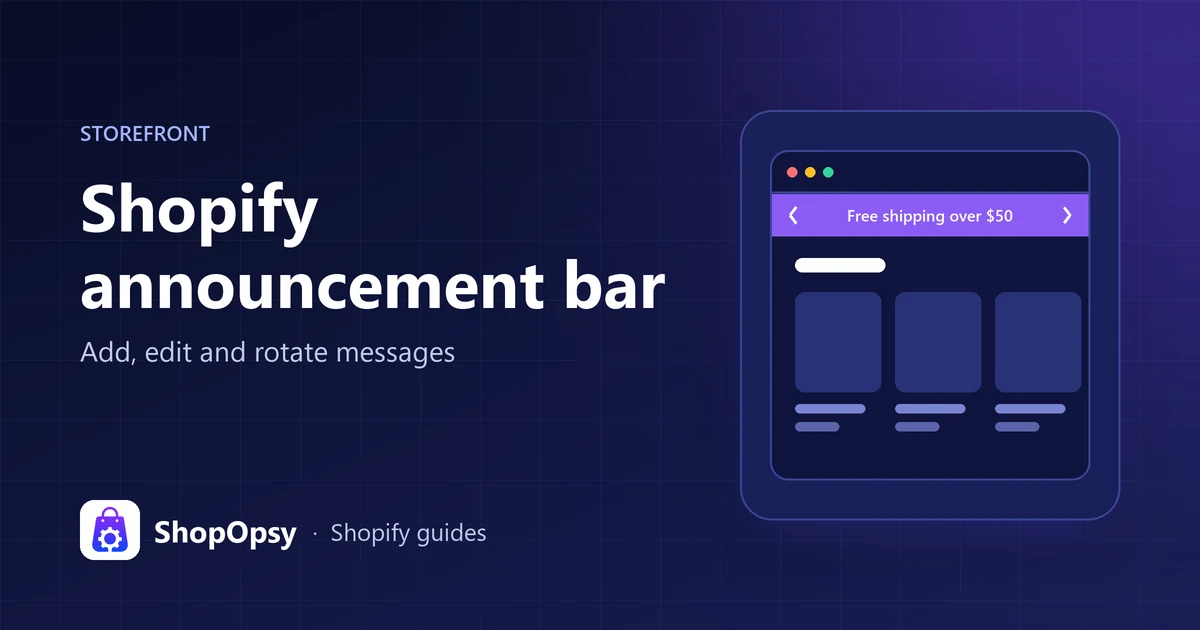
To add a Shopify announcement bar, go to Online Store in your Shopify admin, click Edit theme, open the Announcement bar section at the top of the editor, click Add Announcement, enter your text and an optional link, and click Save. Shopify says a theme can have one announcement bar section with up to 12 announcement blocks, and several announcements can rotate automatically. The built-in section has no start or end dates, so timing a message means changing it yourself or using a scheduling tool.
This guide was checked on 22 October 2026 against Shopify's help page on adding an announcement bar and the current code of Shopify's free Dawn and Horizon themes. Where a setting depends on your theme, it says so.
Does your Shopify theme have an announcement bar?
Most current themes do. Shopify says some themes have one built in, others need a banner app, and some call it an "Announcement banner". Open the theme editor and look for Announcement bar in the list of sections or inside the Header settings. If it isn't there, check your theme's documentation or ask its developer.
The bar lives in the Header area of the editor. Shopify's guide to customizing sections says the Header area includes your announcement bar and that the header is shared across all of your online store's pages. A message you add once therefore appears on every page that uses the theme's main layout. Dawn and Horizon both place their bar in this group.
How to add an announcement bar in Shopify
These steps follow Shopify's help page for desktop:
- From your Shopify admin, go to Online Store.
- Click Edit theme next to the theme you want to change.
- In the Announcement bar section, click Add Announcement.
- Type your message in the Text field.
- Optional: add a destination in the Link field, either a URL or a page you select from your store.
- Click Save.
Before saving, check the message with the mobile preview button in the editor's menu bar. Shopify's theme editor overview notes that undo and redo stop working once you save. You can also ask Sidekick in the theme editor to add an announcement for you.
If the section was removed, add it back from the Header area. Shopify's section groups documentation says merchants can add sections to a group, but the sections on offer depend on your theme.
How to edit the bar: colors, dividers and extras
Shopify groups the options into style (a color scheme), function (language and country/region selectors, social media icons) and animation (rotating announcements). What you see depends on your theme. Two of Shopify's free themes compare like this, based on the current code of Dawn and Horizon:
| Setting | Dawn | Horizon |
|---|---|---|
| Colors | Color scheme on the section | Background color on the section, Text color on each announcement |
| Divider | Separator line checkbox | Divider thickness (0–5 px) and Divider color |
| Rotation | Auto rotate announcements checkbox, off by default; Change every 3–10 seconds, default 5 | Rotates whenever there are two or more announcements; Time to next announcement 2–10 seconds, default 5 |
| Arrows | Previous and next buttons with two or more announcements | Previous and next arrows with two or more announcements |
| Typography | Follows the theme fonts | Font, Size, Weight, Letter spacing and Case per announcement |
| Extras | Social media icons, country/region selector, language selector, marked as appearing only on large screens | Section width (Page or Full), top and bottom padding |
| Link | Wraps the message text and adds an arrow icon | Makes the whole announcement clickable |
Shopify's help page uses slightly different labels, such as Auto-rotate announcements and Change slides every, so expect small wording differences in your editor.
Shopify's color settings page says you manage color schemes under Theme settings > Colors, and a section picks up the scheme's background, text and link colors. If no scheme gives the bar enough contrast, create one for it.
Neither theme has an "open in new tab" option, which matches Shopify's accessibility guidance that text links should open in the same tab.
How to rotate multiple announcements
Add one announcement block per message, up to your theme's limit (Shopify's help page says 12). Then follow Shopify's steps:
- Click the Announcement bar section.
- Select Auto-rotate announcements.
- Set the timing with the Change slides every slider.
- Drag the ⋮⋮ handle on each announcement to set the order.
- Click Save.
Horizon has no step 2. Its bar rotates as soon as it holds two or more announcements, so the only way to stop rotation is to keep a single announcement.
Keep rotation to two or three messages, put the most important one first (it shows when the page loads), and leave at least five seconds between changes.
Rotation behavior differs by theme. In Dawn's current slideshow code, rotation pauses while a shopper hovers over or focuses inside the bar, stops once they use the arrows, and doesn't start for visitors whose device is set to reduce motion. Horizon's announcement bar script pauses on hover. Test your own theme rather than assuming either.
What about a scrolling announcement bar?
Dawn and Horizon swap one message for the next; they don't scroll text like a ticker. Horizon's separate Marquee section scrolls text, but its code excludes it from the header and footer groups, so it sits in a page template, not at the top of every page. A scrolling bar above the header needs a theme that offers one, an app, or custom code.
If you use scrolling text, WCAG 2.2 success criterion 2.2.2 (Pause, Stop, Hide) says moving content that starts automatically, lasts more than five seconds and appears alongside other content needs a way to pause, stop or hide it. Horizon's marquee also stays still for visitors whose device asks for reduced motion.
What to put in a Shopify announcement bar
Shopify's own examples are shipping delays or regions not accepting international shipments, new or updated policy pages, and current promotions such as sales or new gift cards. Give each message one job: a specific fact, a number or date where one applies, at most one link, and a planned end.
| Message type | Example wording | Link to | Remove or change it when |
|---|---|---|---|
| Free-shipping threshold | Free standard shipping on US orders over $75 | Shipping policy | The minimum, rate or eligible regions change |
| Sale with an end date | 20% off outerwear until 31 October, 11:59 pm ET | Sale collection | The discount ends, the same hour |
| Shipping cut-off | Order by 15 December for standard US delivery before 24 December | Shipping policy | The cut-off passes; swap in the next option, if any |
| Shipping delay | Orders placed this week ship within 3–5 business days | Shipping policy or FAQ | Dispatch times are back to normal |
| Region restriction | We currently ship to the US and Canada only | Shipping policy | You start selling to new regions |
| Policy update | Our return window is now 30 days from delivery | Refund policy | A notice period you choose has passed |
| New product or gift card | New: digital gift cards, delivered by email | Product page | The launch is no longer new |
Check each message against the setting it describes. A free shipping minimum belongs to a shipping rate. Shopify's rate setup guide uses an Offer free shipping checkbox on a rate inside a shipping zone. If your store has moved to shipping options by market, which Shopify still lists as early access for certain stores, the setting is Offer free shipping over a minimum order amount inside each market's shipping options. If the minimum differs between zones or markets, one global message will be wrong for some shoppers. Our guide to setting a free shipping threshold in Shopify covers both setups.
Shipping and policy messages work best when they link to a page with the full detail. If those pages need work, see the Shopify shipping policy template and the Shopify refund policy template. For questions that don't fit on one line, a well-organized FAQ page is a better destination than a crowded bar.
Keep deadlines real. The FTC staff report Bringing Dark Patterns to Light lists a "false limited time message" as a pressure tactic: saying a deal ends soon without a deadline, or with one that resets. Use the actual end date and remove the message when the offer ends. This is general information, not legal advice.
What the built-in announcement bar can't do
Can you schedule a Shopify announcement bar?
Not with the built-in section. Shopify's help page describes no start or end date, and neither Dawn's nor Horizon's settings include one. A change goes live when someone saves it. The practical workarounds:
- Prepare the message and hide it. Add the next announcement early, then hover over the block and click the eye icon. Shopify's sections and blocks page says hidden blocks stay in the editor but don't appear on the store. Unhide it at launch and hide it again when the offer ends. Put both times in a shared calendar with a named owner.
- Prepare a draft theme. Duplicate your theme, add the campaign message to the copy, and publish it when the campaign starts. Live-theme edits made in the meantime won't be in the copy, and Shopify's apps page says apps aren't active by default in a new theme, so check your app embeds after publishing.
- Use Launchpad on Shopify Plus. Launchpad is available only on the Shopify Plus plan. It schedules events with a start date and an optional end date, and can switch to a different theme for the event.
- Use an app. Shopify suggests a banner app when the built-in feature lacks the settings you want. Confirm that it supports start and end times in your store's time zone, and ask how it reserves space for the bar. Shopify's guide to Cumulative Layout Shift says many apps that add promotional announcement banners don't save space for them, so the page shifts down when the banner loads. Our Shopify speed optimization checklist covers layout shift and other speed checks.
Can you show a different announcement in each market?
Yes, if your plan and theme support it. Shopify's page on adapting your theme for markets uses this exact example: an announcement bar promoting an offer only for Australian customers. Contextual storefront customizations by market are available on the Advanced plan and higher, and need a compatible theme built with JSON templates.
To edit the text for one market, go to Online Store > Edit theme, choose the market from the Market drop-down menu, edit the announcement and click Save. That creates an override: the item stops inheriting updates from the store Default until you click the reset icon (a circular arrow). Shopify also notes that you can only edit a market's sections and blocks if your primary language is available in that market.
On lower plans, write messages that are true everywhere you sell, or name the region, as in "Free shipping on US orders over $75".
Can you show the bar on some pages only?
Not with a standard setting in Dawn or Horizon. The Header area is shared across all pages, so the bar appears wherever the theme's main layout is used. Limiting it to certain pages depends on your theme, or needs an app or code changes.
Accessibility checks for your announcement bar
- Contrast. Shopify's accessibility guidance asks for body and button text with a contrast ratio of at least 4.5:1 against its background. Check the bar's text and link colors before you save.
- Motion. Shopify says slideshows shouldn't play automatically, and if they do, they need controls to pause, advance or stop them. WCAG 2.2.2 asks for a way to pause, stop or hide auto-updating content too. Neither Dawn nor Horizon shows a pause button in the bar, only arrows, so the safest setup is one message, or rotation turned off where your theme allows.
- Short text. Aim for one line on desktop and no more than two on a phone.
- Text size. Shopify suggests body text of at least the equivalent of 16 px. Horizon's preset announcement size is 12 px, so consider a larger Size if your font reads small.
- Clear links. Shopify says links shouldn't rely on color alone. Dawn adds an arrow to linked messages. Horizon makes the whole announcement clickable without adding an icon, so words such as "See details" tell shoppers there is somewhere to go.
Mobile checks before you publish
- Use the mobile preview in the theme editor, then check the live store on a real phone.
- Count the lines. If a message wraps to three, shorten it. Google's guidance on intrusive interstitials recommends banners that take up only a small fraction of the screen.
- Look at what competes for the top of a first visit. A cookie consent banner, the header and the announcement bar together can cover much of a small screen; our Shopify cookie banner guide covers the consent side.
- In Dawn, the bar's social icons and country and language selectors appear only on large screens, so mobile shoppers need them elsewhere in your theme.
- Tap the link and arrows, then scroll. Whether the bar stays fixed depends on the theme; in Dawn, Sticky header is a Header section setting, not an announcement bar one.
- Check the image below the header when the bar is two lines tall. Our guide to Shopify image sizes covers banner images.
Frequently asked questions
Why isn't my announcement bar showing?
Check whether the announcement or the whole section is hidden (the eye icon), whether the text field is empty (Dawn and Horizon skip announcements with no text), whether you edited an unpublished theme, and whether you're viewing a market with its own override.
How many announcements can I add?
Shopify's help page says one announcement bar section per theme, with up to 12 announcement blocks. Dawn's code sets the same limit. Other themes may differ, so check your theme's documentation.
How do I remove the announcement bar?
To take a message down for now, hover over the announcement, click the eye icon and save. To remove it for good, click the announcement, then Remove block. Shopify warns that deleting is permanent and can't be undone, so hide messages you plan to reuse, such as seasonal shipping cut-offs.
Can I add a countdown timer to the announcement bar?
Not in the built-in Dawn or Horizon bar, which shows text and a link only; you need a theme that includes a timer, or an app. Count down to the real end of the offer: the FTC staff report lists timers that reset or disappear as a pressure tactic.
Sources
- Add an announcement bar — Shopify Help Center, accessed 22 October 2026.
- Customizing Sections in the theme editor — Shopify Help Center, accessed 22 October 2026.
- Theme editor features overview — Shopify Help Center, accessed 22 October 2026.
- Color customizations settings — Shopify Help Center, accessed 22 October 2026.
- Sections and blocks — Shopify Help Center, accessed 22 October 2026.
- Accessibility for themes — Shopify Help Center, accessed 22 October 2026.
- Adapt your theme for specific markets or Shopify B2B — Shopify Help Center, accessed 22 October 2026.
- Understanding markets and market overrides for your theme — Shopify Help Center, accessed 22 October 2026.
- Customizing your theme for specific markets or Shopify B2B — Shopify Help Center, accessed 22 October 2026.
- Duplicating themes — Shopify Help Center, accessed 22 October 2026.
- Publishing themes — Shopify Help Center, accessed 22 October 2026.
- Extend your theme with apps — Shopify Help Center, accessed 22 October 2026.
- Launchpad and Creating Launchpad events — Shopify Help Center, accessed 22 October 2026.
- Setting up shipping zones and rates — Shopify Help Center, accessed 28 October 2026.
- Setting up shipping options for a market — Shopify Help Center, accessed 28 October 2026.
- How to optimize Cumulative Layout Shift (CLS) on Shopify sites — Performance @ Shopify, accessed 28 October 2026.
- Section groups — Shopify developer documentation, accessed 22 October 2026.
- Dawn announcement bar section, Dawn editor labels and Dawn slideshow script — Shopify, Dawn theme on GitHub, accessed 22 October 2026.
- Horizon announcement bar section, Horizon announcement block, Horizon announcement bar script, Horizon marquee section and Horizon editor labels — Shopify, Horizon theme on GitHub, accessed 22 October 2026.
- Understanding Success Criterion 2.2.2: Pause, Stop, Hide — W3C Web Accessibility Initiative, accessed 22 October 2026.
- Avoid intrusive interstitials and dialogs — Google Search Central, accessed 22 October 2026.
- Bringing Dark Patterns to Light — US Federal Trade Commission staff report, September 2022, accessed 22 October 2026.