Shopify Shipping Rates: Flat, Free and Calculated Rates Explained
Every Shopify shipping rate type and how to set it up, from flat and tiered rates to free shipping thresholds and carrier-calculated rates, with a strategy table and fixes for missing or wrong rates.

Published 16 min read
On this page
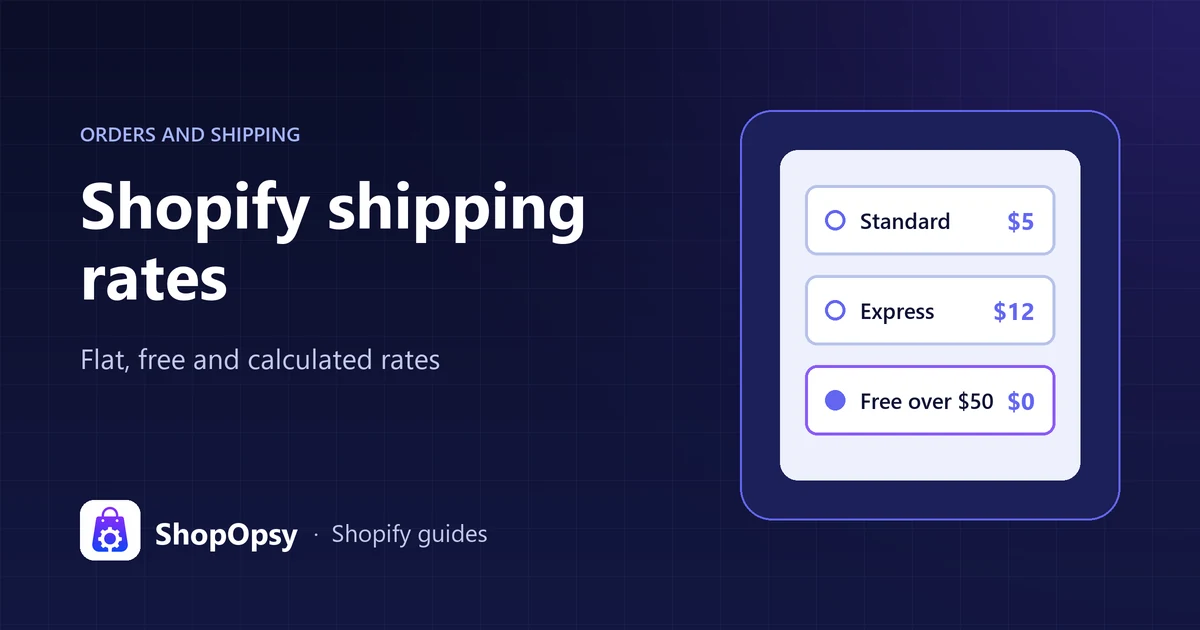
Shopify shipping rates are the prices customers choose from at checkout. You set them in Settings > Shipping and delivery, or under Markets if your store has moved to shipping options by market. Shopify has four rate types: a flat price, tiers by order amount, tiers by weight, and carrier or app calculated rates quoted live by carriers such as USPS or UPS. Free shipping is a rate priced at 0, a minimum order amount added to a rate, or a free shipping discount. A rate only appears when the customer's country is in both an active market and a shipping zone with a rate that matches the order, and checkout selects the cheapest rate by default.
The steps below follow Shopify's Help Center as checked on 26 October
- Admin labels can change, so match each step against what your admin shows.
What shipping rate types does Shopify offer?
| Rate type | How the price is set | What it needs |
|---|---|---|
| Flat | One fixed price per order | Just a price |
| Order amount | Price tiers by cart value | Tiers that cover every cart value |
| Weight | Price tiers by weight | A weight on every product |
| Carrier or app calculated | Live quote from a carrier or app | Weights, a default package, sometimes a plan upgrade |
| Free | A price of 0, or a minimum order amount | A margin that absorbs the cost |
| Local delivery and pickup | Your price per delivery area, or collection | A location that fulfills online orders |
Rates sit inside shipping zones (groups of countries or regions), and zones sit inside shipping profiles, which decide which products get which rates. Profiles have their own guide, Shopify shipping profiles, so this article stays with the rates.
Which shipping setup does your store use?
Shopify is moving every store from profiles and zones to shipping options by market. Its developer blog timeline (7 July 2026) says merchant opt-in and automatic opt-in for new shops started on 1 October 2026, existing stores move automatically until 1 July 2027 as their shipping apps become compatible, and the new system is on for all shops from that date. Shopify's Help Center pages still call shipping options by market early access for certain stores, so your admin is the final word.
Open Settings > Shipping and delivery. Shipping profiles with zones and rates means the current system, which the steps below use unless they say otherwise. If your store has been upgraded, shipping is managed in Markets instead: you set rates in Markets, then the market, then Shipping.
Shopify's upgrade guide says rates migrate automatically, but two pricing rules change. Within one shipping option, only the highest matching rate is charged instead of the sum. And split shipping is always on: weight, carrier and app rates are calculated per shipment and added together, so a split order can cost more than the same items in one box.
How do you set up a flat shipping rate?
A flat rate charges the same price whatever is in the cart. Following Shopify's rate setup guide:
- Go to Settings > Shipping and delivery.
- In Shipping profiles, click the profile, usually the general one.
- To add a zone, click Add zone, enter a Zone name, select the regions and click Done.
- In the zone, click Add shipping option.
- Enter a Name that customers will recognize at checkout, such as "Standard" or "Express". Optional: click Add delivery details to add a short description.
- Select Flat from the Rate type drop-down and enter a Price. Leave it empty or enter 0 for a free rate.
- Optional: choose a Transit time.
- Click Done, then Save.
On an upgraded store, the shipping options guide uses Markets > the market > Shipping > Add shipping option, with the same fields. Staff need the Markets permission.
Two details matter from the start. First, pick a predefined transit time: Shopify's transit time guide says it shows under the rate name and lets checkout display calculated delivery dates, which a custom description alone does not. Transit time starts when the carrier collects the parcel, so processing time is extra. Second, a flat rate applies once per order by default, whatever the quantity.
Can you charge shipping per item?
Not with one flat rate. Shopify's rate guide says flat rates apply one time per order, and charging shipping for each product needs separate shipping rates or a third-party app. Two built-in options come close:
- Weight tiers. If your products weigh about the same, set tiers in steps of one item's weight, so each extra item moves the cart up a tier.
- Carrier or app calculated rates. The quote rises with the weight and size of the order.
How do you set conditional rates by order price or weight?
Conditional rates replace a single price with tiers. Select Order amount or Weight from the Rate type drop-down, then give each tier a Minimum, Maximum and Price, adding tiers with the plus icon.
How do order amount (price-based) tiers work?
An example ladder, with made-up prices:
| Cart value | Standard rate |
|---|---|
| $0.00 to $49.99 | $6.95 |
| $50.00 to $99.99 | $3.95 |
| $100.00 and up (no maximum) | Free |
Three rules from the rate guide and Shopify's troubleshooting guide:
- Cover every cart value. Start the lowest tier at 0 and leave the top tier's Maximum empty. An order above a tier with a maximum gets no rate and a shipping error.
- Discounts count. Price-based rates use the cart value after discounts and before taxes, so a discount code can move a cart into a more expensive tier.
- Profiles add up. Price-based rates from different profiles are combined: two $5 rates for orders over $50 cost $10 on a $55 order that spans both profiles.
How do weight-based tiers work?
Weight tiers work the same way, measured by weight. Before you rely on them:
- Weigh everything. In each product's Shipping section, turn on Physical product and fill in Weight, as Shopify's product details guide shows. Missing weights count as zero. For a large catalog, the Shopify bulk editor is faster than opening products one at a time.
- Use one unit for product weights and tiers.
- Remember the default package. Shopify adds your store default package weight. Set it to zero if rates should use product weight only.
- Watch tier edges. Weights round up to whole grams, and a cart that falls into a gap between tiers gets the next higher rate.
On upgraded stores, Shopify's overview of shipping options by market says weight rates are priced per shipment and added together, and a weight-based option holds only one rate.
How do you offer free shipping on Shopify?
There are three ways to make shipping free in Shopify:
- A free rate. A flat rate priced at 0. Every eligible order in that zone ships free.
- A threshold on a rate. Edit the shipping option, select Offer free shipping and enter the minimum order amount. On upgraded stores it reads Offer free shipping over a minimum order amount. The rate guide says it works on any rate type, carrier-calculated included, but on order amount or weight tiers it applies only within the tier that matches the order.
- A free shipping discount. Go to Discounts > Create discount and choose Free shipping, as a code or an automatic discount.
Free shipping threshold or free shipping discount?
| Threshold on a rate | Free shipping discount | |
|---|---|---|
| Where you set it | The shipping option | Discounts |
| Who gets it | Every order above the minimum in that zone or market | All customers, specific customers, segments or markets |
| Minimum | Order amount | Minimum purchase amount or Minimum quantity of items |
| Skip expensive rates | No | Exclude shipping rates over a certain amount |
| Dates and usage limits | No | Start and end dates; usage limits on codes |
| Suits | A permanent "free over $X" offer | Campaigns and VIP customers |
Shopify's free shipping discount guide adds the fine print: the minimum purchase amount counts product prices only, never taxes, and gift cards or store credit used as payment don't count toward it. In other markets, the minimum is set in your store currency and converted at checkout, according to the markets discounts guide.
For free shipping on some products only, Shopify's method is a custom shipping profile with a flat rate of 0, which the shipping profiles guide walks through.
How do you pick a free shipping threshold?
Shopify's shipping strategy guide puts it plainly: shipping is "never actually free." It suggests building part of the cost into product prices. One way to pick the number, as a planning approach rather than a Shopify rule:
- Work out your average cost to ship one order from recent labels.
- Set the threshold a little above your current average order value, so many customers add one item to qualify.
- Check the margin on a discounted cart that only just clears it. Our free profit margin calculator shows what an order earns after product cost, shipping and fees.
Show the threshold where shoppers look, such as an announcement bar, and update it whenever the minimum changes. Also review the rates Shopify created when you opened the store: the strategy guide says the defaults often include a free rate.
How do carrier-calculated shipping rates work?
Carrier-calculated rates ask a carrier or an app for a live price based on the order's weight, dimensions and destination. There are two sources, with different plan rules.
Which carrier rates are built in?
Shopify's rate guide says built-in carrier integrations are available on all plans, and the carriers depend on your fulfillment location's country:
| Fulfillment location | Built-in carriers |
|---|---|
| United States | USPS, DHL, UPS |
| Canada | Canada Post, Purolator |
| United Kingdom | DPD UK, InPost UK, Royal Mail |
| Italy | BRT |
| Germany | DHL Paket |
| Spain | Seur |
Shopify's strategy guide gives a different list, saying label rates can show at checkout for locations in the United States, Canada and Australia, so check which carriers your admin offers for your location.
Which plans can use your own carrier account or a shipping app?
Connecting your own UPS, FedEx, USPS, Canada Post or Australia Post account uses third-party carrier-calculated shipping. Shopify's plan availability page lists it as included on Advanced and Plus, available on Grow for an extra monthly fee or included with annual billing, and not available on other plans. UPS and FedEx accounts work worldwide; USPS, Canada Post and Australia Post need a location in their own country. When a shipping app's rates don't show, the troubleshooting guide also tells you to confirm this feature is active.
How do you add a calculated rate?
- In the zone, click Add shipping option.
- Select Carrier or app calculated from Rate type, then click Choose carrier and apps.
- Choose the provider from the Carrier or app drop-down, select the services, and optionally turn on Automatically include new services when they become available.
- Optional: add a Handling fee as a percentage, a fixed amount or both. The percentage applies first, and a negative value gives a discount.
- Click Done, then Save.
Calculated rates need accurate weights, a store default package with realistic dimensions, and an active location with a valid address. Carriers may charge for dimensional weight when a box is large but light, as Shopify's packages and weights guide explains, so keep packaging snug.
What happens when carrier rates fail?
When every carrier or app rate for a shipment fails and no other eligible rate exists, Shopify shows backup rates so the customer can still check out. They are on by default. To change them, open the menu next to the calculated rate, click Edit backup rate, and choose Shopify's defaults or custom backup rates by order value or item weight. Flat rates for the same destinations always show when eligible, even while carrier rates work, so customers may pick the flat one.
Are Shopify Shipping rates the same as label costs?
"Shopify Shipping rates" can mean the built-in carrier rates customers see at checkout, or the discounted price you pay for a label. Shopify's label rate calculator, under Settings > Shipping and delivery > Shipping labels > Calculate rates, previews label prices for an origin, destination and package, which helps you set flat rates that cover real costs. Shopify says label discounts vary by location, plan and carrier. Buying, printing and voiding labels is covered in our Shopify shipping labels guide.
How do local delivery and pickup rates work?
Both are separate delivery methods under Settings > Shipping and delivery > Additional delivery methods, not shipping zones.
- Local delivery. Per Shopify's local delivery guide, you define the area by postal codes or a radius of up to 160 km or 100 miles, then set a Delivery price (0 for free), an optional Minimum order price and up to three extra price rules per zone. Each location can have up to 10 delivery zones.
- Pickup in store. Per the pickup guide, you turn it on for a location and choose a processing time under Expected pickup date, which customers see at checkout. By default, pickup is offered only when the whole order is in stock there.
How do shipping zones and markets work together?
Shopify's zones and markets guide says a country appears at checkout only when it is in both an active market and a shipping zone with rates. To start shipping to a new country, add it to a market in Markets, add it to a shipping zone in Settings > Shipping and delivery, then activate the market.
The rate setup guide adds that, within one profile, a country can belong to only one zone. Rates convert automatically into each active market's currency, which may not give exact local prices. To charge a fixed amount in a local currency, create a separate zone for that region; only stores using Shopify Payments can set flat rates in local currencies.
Which shipping rate strategy should you choose?
Shopify's strategy guide names flat, free and carrier-calculated as the three main approaches. The table below is our recommendation for where to start, and you can combine approaches.
| Your situation | Start with | Why | Watch out for |
|---|---|---|---|
| Similar products, mostly domestic | Flat rate plus a free threshold | Customers know the price before checkout | Carrier price rises eat the margin |
| Wide price range, want bigger baskets | Order amount tiers with a free top tier | Rewards larger carts | Discounts move carts between tiers |
| Product weights vary a lot | Weight tiers | The charge follows your cost | Every product needs a weight |
| Heavy, bulky or international parcels | Carrier or app calculated | Charges close to the real cost | Price shows only at checkout, which Shopify says can raise abandonment |
| Promotions or VIP customers | Free shipping discount | Targeted and time-limited | Minimum counts product prices only |
| Customers nearby | Local delivery or pickup | Cheaper than a carrier | Area limits and stock at that location |
| A few products cost more to ship | A custom shipping profile | Keeps everyone else's rate low | How mixed carts are charged |
How do shipping rates appear at checkout?
Shopify's rate guide and combined rates guide describe what customers see:
- Rates appear only after the customer enters an address, and only those that apply to the order and address.
- The cheapest rate is selected by default, and rates recalculate if the order changes before the last step.
- In a cart with products from several profiles, same-name rates are added together. When no names match, the cheapest rate from each profile is added into one rate called "Shipping".
- On upgraded stores, checkout shows how many shipments to expect, and shipments already covered by a flat or order amount charge are labeled Included.
- Apps built on Shopify Functions can hide, rename or reorder delivery options, but the delivery customization API requires the cheapest shipping option to stay selected by default.
Your shipping policy should match all of this: rate names, prices, the free shipping minimum and where you ship. Our Shopify shipping policy template maps each section to these settings. If you'd rather not write it yourself, ShopOpsy's Shipping Policy Setup is a one-time $49 service that drafts the policy from your rates, carriers, delivery areas and free shipping threshold, sent by email as plain text ready to paste into Settings > Policies.
Why are Shopify shipping rates missing or wrong?
Test every fix with a new checkout, because Shopify's troubleshooting guide says an abandoned checkout keeps the rates it was created with.
"Shipping not available" or "Your order cannot be shipped to the selected address"
These messages mean no rate you set up matches the cart and the address. Work down this list from Shopify's troubleshooting guide:
- The country isn't in an active market. Add it in Markets and activate the market.
- No zone or rate covers the address. Add the country to a zone with rates in every profile whose products are in the cart.
- No tier fits the cart. Leave the top tier's Maximum empty.
- The product is set as digital. Turn on Physical product.
- No stock at fulfilling locations. Restock, or turn on Continue selling when out of stock; our guide to Shopify out of stock settings explains the trade-offs.
- The location can't ship. It is inactive, has no valid address, or isn't set to fulfill online orders.
- A supplier or app location has no rates. In the profile, find it under Not fulfilling from (the troubleshooting guide calls it Not shipping from this location) and click Add rates.
- Changes weren't saved. Make them again and click Save.
Why does checkout show the wrong rate?
| What you see | Likely cause | Fix |
|---|---|---|
| Weight rate too low | Missing weights count as zero | Add a weight to every product and variant |
| Weight rate one tier too high | Default package weight, rounding, or a gap between tiers | Check the default package and close gaps |
| Rate changes after a discount code | Price-based rates use the discounted total | Adjust tiers or accept it |
| One rate called "Shipping" | Rate names differ between profiles | Match names exactly, including capitalization |
| Wrong currency after a store currency change | Rates keep the currency they were created in | Delete and recreate them |
| Only one carrier returns rates | The default package is a carrier-specific box | Use a generic default package |
| Mixed carts cost less after the upgrade | Only the highest matching rate in an option applies | Review rates in Markets |
Why are carrier or app rates missing?
- Weights or package dimensions are wrong, or the default package is outside a service's size limits.
- The origin or destination address isn't valid for that carrier.
- Third-party carrier-calculated shipping isn't active for your store.
- The test address is outside the zones where the app is active.
- On upgraded stores, an incompatible shipping app's rates may not appear at checkout; a banner in shipping settings flags those apps.
- If all of that checks out, contact the app developer.
Frequently asked questions
How can customers see shipping costs before checkout?
Calculated rates only appear at checkout, but flat and tiered rates can be published in advance. Shopify's strategy guide suggests adding a table of your flat rates to your shipping and delivery page, and a free shipping minimum fits in a site-wide message.
Sources
- Setting up shipping zones and rates — Shopify Help Center, accessed 26 October 2026.
- Creating a shipping strategy — Shopify Help Center, accessed 26 October 2026.
- Transit time for flat rates — Shopify Help Center, accessed 26 October 2026.
- Troubleshooting and testing shipping rates — Shopify Help Center, accessed 26 October 2026.
- Backup shipping rates — Shopify Help Center, accessed 26 October 2026.
- Third-party shipping carrier accounts and availability — Shopify Help Center, accessed 26 October 2026.
- Calculating shipping rates from different shipping profiles — Shopify Help Center, accessed 26 October 2026.
- Packages and weights — Shopify Help Center, accessed 26 October 2026.
- Product details page — Shopify Help Center, accessed 26 October 2026.
- Free shipping discounts — Shopify Help Center, accessed 26 October 2026.
- Discounts and gift cards in markets — Shopify Help Center, accessed 26 October 2026.
- Shipping zones and markets — Shopify Help Center, accessed 26 October 2026.
- Local delivery — Shopify Help Center, accessed 26 October 2026.
- Pickup in store — Shopify Help Center, accessed 26 October 2026.
- Calculating shipping label rates — Shopify Help Center, accessed 26 October 2026.
- Upgrading from shipping profiles to shipping options by market — Shopify Help Center, accessed 26 October 2026.
- Understanding shipping options by market — Shopify Help Center, accessed 26 October 2026.
- Setting up shipping options for a market — Shopify Help Center, accessed 26 October 2026.
- The next generation of Shopify fulfillment is coming — Shopify developer blog, accessed 26 October 2026.
- Delivery customization API — Shopify developer documentation, accessed 26 October 2026.