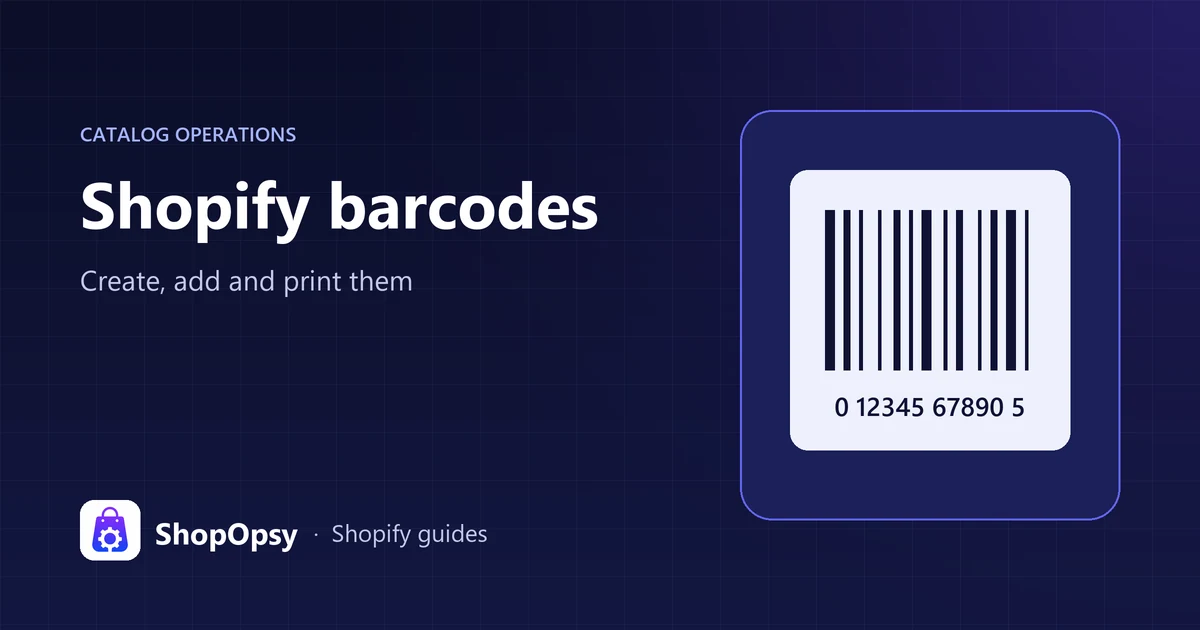
Shopify Barcodes: How to Create, Add and Print Them
How Shopify barcodes work: Shopify’s own free barcode tools, when you need GS1 UPC or EAN codes instead, how to add barcodes to variants one by one or in bulk, and how to print and scan labels with Shopify POS.

Published Updated 15 min read
On this page
Shopify has two free tools of its own for making barcodes, and neither creates UPC or EAN codes. The Retail Barcode Labels app, made by Shopify, generates 8-digit Code 128 barcodes for your variants and prints labels on Dymo, Zebra or Avery stock. Shopify's free online barcode generator turns the text or number you enter, such as a SKU, into a Code 128 image, one barcode at a time.
Both make internal barcodes: fine for scanning products with Shopify POS in your own shop and stockroom, but not for Google Shopping, marketplaces or retailers, which expect a GTIN (a UPC or EAN number) licensed from GS1. Whichever code you use, it goes in the variant's Barcodes field, which has held up to 20 barcodes per variant since September 2026.
If you already have the numbers and only need the barcode images or a printable label sheet, ShopOpsy's free Shopify barcode generator draws UPC, EAN and Code 128 barcodes in your browser and calculates the check digits. This guide covers Shopify's own tools and GS1's rules. Steps and menu names were checked against Shopify's Help Center on 26 October 2026.
Which barcode option should you use?
Start from where the barcode has to work, not from the tool.
| Option | Cost | What you get | Works for | Doesn't work for |
|---|---|---|---|---|
| Retail Barcode Labels app, by Shopify | Free | 8-digit Code 128 barcodes saved to your variants, plus label printing | Scanning at your till, stock counts, shelf and swing-tag labels | Google Shopping, marketplaces, retailers |
| Shopify's online barcode generator | Free, with an email address | One Code 128 PNG per request, from the text or number you enter | One-off labels, a barcode that encodes your SKU | Bulk work; nothing is saved to your products |
| ShopOpsy's barcode generator | Free, no sign-up | UPC-A, EAN-13, EAN-8 and Code 128 barcodes as SVG or PNG, with check digits calculated, plus label sheets from a list or a Shopify product export | Barcodes for numbers you already have, including licensed GS1 numbers; in-store labels | Getting a GTIN: it doesn't issue or register GS1 numbers; nothing is saved to your products |
| GS1 barcode (a GTIN shown as UPC or EAN) | Paid licence from the GS1 office in your country | A globally unique number registered to your company | Google, marketplaces, wholesale and retail | Codes you assign carelessly or reuse |
| The manufacturer's barcode | Free; already on the packaging | The GTIN the brand owner assigned | Reselling branded goods | Your own-brand products |
Resellers rarely need a generator: scan the barcode already on the packaging. If you make your own products and plan to sell beyond your own store, budget for GS1 numbers before you print packaging.
Do you need an internal barcode or a GS1 barcode?
A barcode is the symbol; the number inside it is what systems look up. GS1 US explains that a GTIN is the data and the barcode is its carrier. A 12-digit GTIN-12 is what a UPC-A barcode encodes, mainly in North America, and a 13-digit GTIN-13 is what an EAN-13 barcode encodes, mainly elsewhere. Code 128, the format both Shopify tools produce, can encode all 128 ASCII characters, letters as well as numbers, which suits internal codes such as SKUs, but a value you make up yourself means something only inside your business.
When an internal barcode is enough
- You sell only on your online store and in person with Shopify POS.
- You want labels for your own stockroom, stock counts and receiving.
- The products are your own and no channel you use asks for a GTIN.
Shopify's own Retail Barcode Labels documentation says the app's 8-digit barcodes aren't suitable for Google Shopping because other stores can have the same numbers, and that third-party channels require unique barcodes purchased from GS1.
When you need a GS1 GTIN
- Google Shopping. Shopify's Google & YouTube channel requirements say that if a product has a GTIN, you need to add it before you can publish the product; products without one need an MPN and brand instead. Google's GTIN attribute guide adds that a product could be disapproved if it has a GTIN you don't submit, that each colour or size has its own GTIN, and that you shouldn't guess or make up a value. A store brand without a GTIN doesn't need one. Google also lists 02, 04 and 2 as restricted prefixes, and 05, 98 and 99 as coupon prefixes, so an in-store number in those ranges is no substitute.
- Marketplaces and retailers. Rules vary by channel, so read each marketplace's product ID requirements before you list. GS1 US says a GS1 Company Prefix proves that your company, and only your company, is authorised to use it, and that customers can check your GTIN or prefix in the GS1 Company Database (GEPIR).
How to get GS1 barcodes
- Count your variants. GS1 US says each variation of each product needs its own barcode: a T-shirt in 3 sizes and 3 colours needs 9. If you sell large size and colour ranges, check how many variants Shopify allows at the same time.
- Buy from the GS1 member organisation in your country. On 26 October 2026, the GS1 US get-started guide listed a single GTIN at $30 with no annual renewal fee, and Company Prefixes from $250 for 10 items with a $50 annual renewal. GS1 US reserves the right to change its prices, and other countries' GS1 offices set their own.
- Avoid resold numbers. GS1 Australia's barcode FAQs say that if you buy barcode numbers from a reseller, you do so at your own risk.
- Assign and record. Keep a sheet of which GTIN went to which variant so no number is used twice.
How to add barcodes in Shopify
Barcodes belong to variants. A product without variants shows them in its Inventory section; a product with variants keeps a separate set on each variant. Barcodes are a built-in field, so you don't need to create a metafield to store GTINs.
Since a September 2026 update, each variant can hold up to 20 barcodes, such as a manufacturer's UPC plus your own internal code. Shopify says channels continue to read the first barcode, and that the first one is used wherever a single barcode is expected, so labels, channel feeds and apps keep working as before. Our recommendation: if you sell on Google, put the GTIN first.
Each barcode has a type, and Shopify checks the value against that type's rules. The product details page guide lists these types:
| Type | Accepts | Use it for |
|---|---|---|
| Custom (the default) | Any value up to 255 characters | Internal and SKU-based codes |
| GTIN | 8, 12, 13 or 14 digits | GS1 numbers; set automatically when the barcode is registered with GS1 |
| UPC | 8 or 12 digits | Retail codes used mainly in North America |
| EAN | 8 or 13 digits | Retail codes used mainly outside North America |
| ISBN | 10 or 13 characters, which can include X | Books |
| ASIN | 10 letters or digits | Amazon catalogue numbers |
| NS-PID | Up to 255 characters | Model, part or style numbers used on customs declarations for EU shipments |
The same value can't be used twice on one product or variant. According to Shopify's guide to adding and updating products, when you enter a barcode registered with GS1, Shopify sets its type to GTIN and shows a warning if your product name and vendor don't match the GS1 listing; click the warning icon to compare the two.
Add a barcode to a product without variants
These steps follow the same Shopify guide:
- In your Shopify admin, go to Products and open the product.
- In the Inventory section, click the Barcodes field.
- Enter the number in the Barcode field.
- Optional: click the Custom drop-down and choose the barcode type.
- To add another barcode, click Add barcode and repeat.
- Click Save.
Add barcodes to variants
- Go to Products and open the product.
- In the Variants section, select the variants you want to edit.
- Click the horizontal menu icon and choose Edit barcodes.
- In the Edit barcodes dialog, open each variant's drop-down, enter the number in the Barcode field and, optionally, choose a type from the Custom drop-down. Click Add barcode to add another.
- Click Done, then click Save.
Scan a barcode with your phone
In the Shopify app, open the product (or the variant), tap Edit in the Inventory section, then tap Barcodes (EAN, GTIN, ISBN, UPC, etc.). Tap the Barcode icon, scan the code with your camera, optionally choose a type, and tap Save or the checkmark.
How to generate barcodes with Retail Barcode Labels
Retail Barcode Labels is free and listed on the Shopify App Store with Shopify as the developer. It runs in the Shopify admin on desktop and in the Shopify app. To set it up:
- Install the app from the Shopify App Store.
- Go to Apps > Retail Barcode Labels and click Create template. If you have no templates yet, click Get started, then choose Skip to go straight to the template view or Create barcodes to create barcodes first.
- Enter a title, choose a Label type, pick what to show in Label preview, drag the items into order and click Create template.
- Click Create barcodes, then choose Create barcodes for products without barcodes to generate them automatically, or Create barcodes for specific products and select them in the Add products dialog.
Know the limits before you run it:
- Code 128 only. Each barcode is the last 8 digits of the variant ID. Shopify says duplicates are rare but possible.
- Existing barcodes can be overwritten. Creating barcodes for products that already have them replaces the old values, so export your products to CSV first as a backup.
- Fixed label sizes. You can't add custom sizes.
- Manual selection. There's no CSV upload or automatic bulk printing; you choose each variant and quantity.
- Prices. Prices print only in currencies that Shopify Payments supports.
How to use Shopify's free online barcode tool
The online barcode generator asks for the data to encode and an email address, which also signs you up for Shopify marketing emails, then gives you a Code 128 PNG to download and emails it to you. It makes one barcode at a time and saves nothing to your products, so paste the same value into the variant's Barcodes field yourself.
It's handy for a barcode that encodes your SKU: Shopify's SKU guide notes that Shopify POS can find a product by its barcodes or its SKU, and recommends SKUs without spaces or special characters. If your variants don't have SKUs yet, our free SKU generator builds one per variant from a pattern you set. Test one label at your till before you print more.
How to print barcode labels
To print from your product list:
- Go to Products and select the products.
- Click the horizontal menu icon and, under Apps, choose Print barcode labels.
- Choose a label template and enter the number of labels for each variant.
- Check the settings in the Print job section and click Print labels. To keep a copy, set Destination to Save as PDF.
- In the print dialog, choose your label printer, set the paper size to your exact label, orientation to portrait and quality to 300 × 600 dpi, then click Print.
You can also start from Apps > Retail Barcode Labels > Print labels. Shopify recommends Google Chrome, prints labels in alphabetical order of product title, and requires a staff role with product permissions to select products. Printing labels isn't supported in Shopify POS, and the app can't print from an iPad; Shopify points iPad users to the Dymo Connect app instead.
Which label sizes does the app support?
| Printer or sheet | Labels |
|---|---|
| Dymo | 30252 Large (1 1/8 × 3 1/2 in, up to 39 digits), 30336 Small (1 × 2 1/8 in, up to 22 digits), 30332 Square (1 × 1 in, 6 to 8 digits), 30299 Price Tag (3/8 × 3/4 in, 8 digits; not available in the UK) |
| Avery sheets for laser or inkjet printers | 5160 (2.63 × 1 in), 5167 (1.75 × 0.5 in) |
| Zebra | 10010037, 10010038, 10010039, 10015340, 10010043, 10010044, ZSB-LC6, ZSB-LC7 and ZSB-LC8 |
How do you print labels that scan?
Shopify's barcode guide recommends printing at 300 DPI or higher, keeping barcodes at least 1.5 inches wide by 1 inch tall, using black or another dark ink rather than red or brown, printing the number below the symbol and testing one sheet before a large batch. It also advises one barcode per physical product, even though the admin can now store several per variant.
Looking for carrier labels for parcels instead? See Shopify shipping labels.
How to add barcodes in bulk
Using the bulk editor and a scanner
This suits products you have in hand. Following Shopify's bulk editing guide:
- In Products, select the products and click Bulk edit.
- Click Columns and select Barcodes.
- Set your scanner to keyboard mode and make sure it sends a return or tab character, called a suffix, after each scan.
- Select the first empty Barcodes cell and scan. The selection moves to the next row, so keep scanning down the list.
- Click Save.
A scan replaces every barcode that variant already has, so use this on variants without barcodes. To add several barcodes to one variant, open its cell with Enter, click Add barcode and scan each one. Our Shopify bulk editor guide covers the rest of the editor.
Using a product CSV
This suits GS1 number lists and supplier files. Current exports name the column Barcodes, per Shopify's CSV guide; Shopify's changelog calls it the Variant Barcodes column, and older files have a singular Barcode column. The rules:
- Up to 20 barcodes per variant, separated by semicolons.
- Put the type and a colon before a value, such as
gtin:orupc:. A value without a type imports as Custom. - To use a semicolon, colon or backslash inside a value, put a backslash before it.
- A file can't contain both a Barcode and a Barcodes column; it fails to import. Rename the old column instead of adding a second one.
A minimal update file looks like this (example values):
URL handle,Title,Option1 name,Option1 value,SKU,Barcodes
linen-shirt,Linen Shirt,Size,S,LS-WHT-S,upc:012345678905
linen-shirt,Linen Shirt,Size,M,LS-WHT-M,upc:012345678912; LS-WHT-M
Barcodes are variant data, so keep the option columns and every variant row. Shopify warns that leaving out Option1 name and Option1 value when you change variant fields can create a default variant and delete the existing ones. Our CSV update checklist walks through a safe test import.
Watch your spreadsheet too. Microsoft says Excel removes leading zeros and converts large numbers to scientific notation, so a UPC such as 012345678905 can lose its first digit and a long number can be shown in scientific notation, like Microsoft's example 1.23E+15. To keep the digits intact, import the CSV with Data > From Text/CSV, change the Barcodes column's data type to Text before loading it, then spot-check a few rows in the saved file.
How to scan barcodes with Shopify POS
Shopify POS works with the Socket Mobile 1D and 2D scanners, the HP Engage 2D G2, the Zebra DS2208 and DS2278 and any HID scanner, and your device's camera can read 1D and 2D barcodes, according to Shopify's barcode scanner guide.
- At checkout, keep the scanner in Application mode; scanning a product's barcode adds it to the cart.
- With the camera, tap the Barcode icon in the search bar first, then hold the barcode in front of the camera.
- Outside the search bar, a scan matches the variant directly. Scanned into the search bar, it shows the main product and you pick the variant, as described in searching for products in Shopify POS.
- Extra barcodes scan from POS version 11.14, according to the changelog, once they're added to the variant in Shopify admin.
How to fix common Shopify barcode problems
| Problem | Likely cause | Fix |
|---|---|---|
| A scan finds nothing in POS | Barcode not on the variant, product not available on the Point of Sale channel, or an extra barcode on POS older than 11.14 | Add the barcode in admin, make the product available to Point of Sale, update POS |
| POS asks which product you want | More than one product uses that code | Give each variant its own barcode |
| Shopify rejects the value you typed | The digits don't fit the chosen type, such as 11 digits as UPC | Fix the number, or use the Custom type for internal codes |
| Warning icon next to a GTIN | Product name or vendor differs from the GS1 listing | Click the icon and compare; check you have the right number |
| CSV import fails | The file has both Barcode and Barcodes columns | Keep only Barcodes |
| Bulk editor ignores scans | Column hidden, several cells selected, row filtered, editor still saving, or no scanner suffix | Fix the setting and scan again |
| Google says the GTIN is missing or invalid | An internal or restricted-prefix code in the first barcode slot | Use the manufacturer's GTIN or your own GS1 number |
| Labels print cut off or blurred | Paper size or quality doesn't match the label | Set the exact label size and 300 × 600 dpi |
Frequently asked questions
Is a barcode the same as a SKU?
No. Shopify describes SKUs as internal codes for tracking inventory and reporting on sales, and says they serve different purposes from barcodes. You can use both on the same variant, and Shopify POS finds a product by either.
Do I need barcodes to sell on Shopify?
Not always. Shopify's product details guide notes that some sales channels might require a GTIN before a product can be published, and Google expects the manufacturer's GTIN for products that have one. In Shopify POS, you can also find a product by its SKU.
Can I make my own UPC codes for free?
You can make a free barcode image, but not a valid UPC number. GS1 US says a UPC-A barcode can only encode a GTIN-12, that GTINs are issued exclusively by GS1, and that GTINs from unauthorised third parties may already belong to another company or product. Google also tells merchants not to make up GTIN values. Once you have a licensed GTIN, ShopOpsy's barcode generator checks its check digit and draws the UPC or EAN barcode.
Which barcode should I use for products I resell or dropship?
Use the GTIN the brand owner assigned. Shopify says that if you don't have a GTIN, you can request it from the manufacturer, and GS1 US explains that the brand owner assigns the GTIN, so your own GS1 numbers belong on your own products.
Sources
- Retail Barcode Labels app — Shopify Help Center, accessed 26 October 2026.
- Retail Barcode Labels — Shopify App Store, accessed 26 October 2026.
- Free barcode generator — Shopify, accessed 26 October 2026.
- Adding and updating products — Shopify Help Center, accessed 26 October 2026.
- Product details page — Shopify Help Center, accessed 26 October 2026.
- Using SKUs to manage your inventory — Shopify Help Center, accessed 26 October 2026.
- Understanding barcodes — Shopify Help Center, accessed 26 October 2026.
- Using CSV files to import and export products — Shopify Help Center, accessed 26 October 2026.
- Bulk editing — Shopify Help Center, accessed 26 October 2026.
- Barcode scanners — Shopify Help Center, accessed 26 October 2026.
- Searching for products in Shopify POS — Shopify Help Center, accessed 26 October 2026.
- Google & YouTube channel requirements — Shopify Help Center, accessed 26 October 2026.
- Product variants now support multiple barcodes — Shopify Changelog, accessed 26 October 2026.
- Scan and search variants with multiple barcodes — Shopify Changelog, accessed 26 October 2026.
- [GTIN [gtin]](https://support.google.com/merchants/answer/6324461) — Google Merchant Center Help, accessed 26 October 2026.
- How to get UPC barcodes for products — GS1 US, accessed 26 October 2026.
- What is a GTIN? — GS1 US, accessed 26 October 2026.
- GS1 Company Prefix, barcodes, and identification — GS1 US, accessed 26 October 2026.
- Barcode standards FAQs — GS1 Australia, accessed 26 October 2026.
- Keeping leading zeros and large numbers — Microsoft Support, accessed 26 October 2026.