Shopify Shipping Labels: How to Buy, Print and Void Them
How to buy Shopify shipping labels for one order or in bulk, which countries and carriers are supported, how to print 4 x 6 or Letter labels, void unused ones and fix purchase errors.

Published 17 min read
On this page
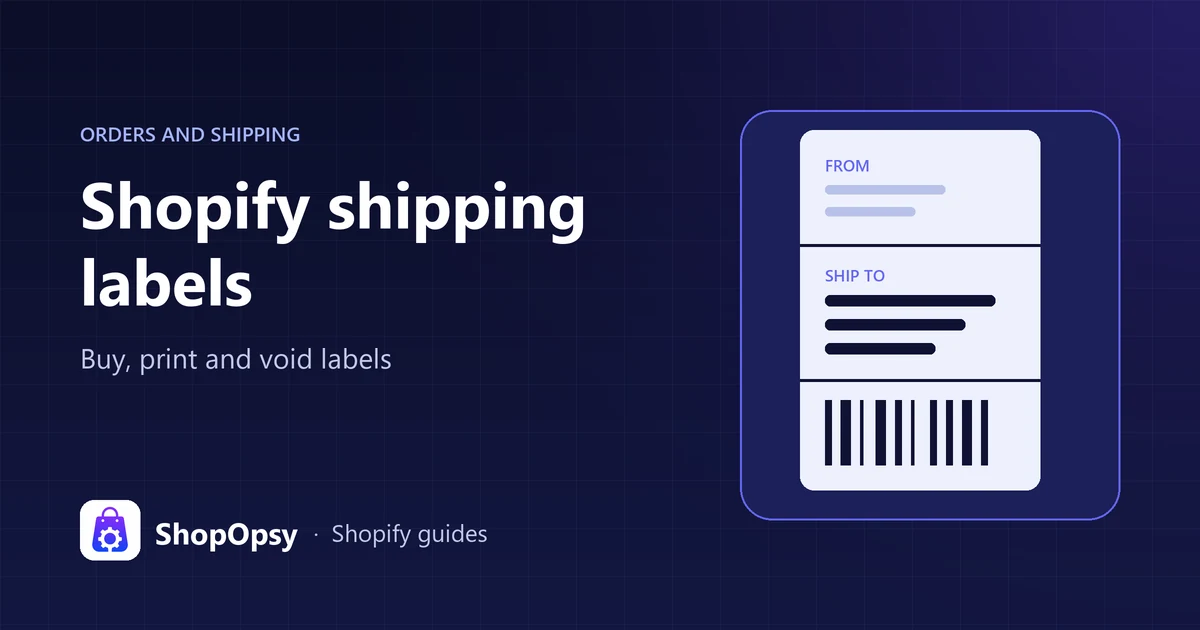
Shopify shipping labels are prepaid postage labels you buy inside your Shopify admin while you fulfill an order. Open the order, click Create shipping label, confirm the items, package, weight and shipping service, then click Buy shipping label. The order is marked as fulfilled, the tracking number and carrier are added to it automatically, and the cost is normally charged to your Shopify bill. You print the label on 4 x 6 inch thermal labels or on Letter or A4 paper, and you can void most unused labels within 30 days if the carrier hasn't scanned them. Label buying works only from eligible fulfillment locations in ten countries (as of October 2026), so check yours first.
This guide follows Shopify's Help Center as of 26 October 2026. Shopify renames admin labels from time to time, so expect small differences in wording.
Which countries and carriers support Shopify shipping labels?
Availability depends on the country of your fulfillment location. Shopify's requirements for buying shipping labels list these carriers:
| Fulfillment location | Carriers you can buy labels from in Shopify |
|---|---|
| United States | USPS, FedEx, UPS (not in Puerto Rico), DHL Express and DHL eCommerce (continental US only) |
| Canada | Canada Post, UPS, DHL Express Canada, Purolator (domestic only) |
| Australia | Australia Post |
| United Kingdom | Royal Mail, Evri, DPD, InPost UK, DHL Express Europe |
| France | Colissimo, Chronopost, Mondial Relay, DHL Express Europe |
| Germany | DHL Paket, DHL Express Europe |
| Italy | Poste Italiane, BRT Bartolini, DHL Express Europe |
| Spain | Correos, SEUR, DHL Express Europe |
| Netherlands | DHL eCommerce Netherlands (domestic only) |
| Poland | DHL eCommerce Poland (domestic and other EU countries) |
Four details change the answer for some stores:
- Your store address can matter. Some carriers need your store address in the same country as the location: Evri and DPD need both in the UK.
- The list changes. Sendle ceased shipping on 11 January 2026 and is no longer offered in Australia. Shopify's Australia Post page says you need an Australia Post MyPost Business account, connected in Settings > Shipping and delivery under Carrier accounts. Your rates are based on that account, and you pick a payment method from it when you connect.
- Canada Post to the US is DDP only. Since 28 August 2025, those shipments must be sent Delivered Duty Paid.
- App locations are excluded. Shopify's buying labels overview says you can't buy labels for products stocked in or fulfilled from an app location. Outside the supported countries, use a shipping label app, or buy postage from the carrier and add the tracking number yourself.
Labels come at discounted carrier rates, but Shopify's rate calculator guide says the discount depends on your location, plan and carrier, and some discounts are the same on every plan. To price a parcel, go to Settings > Shipping and delivery, click Shipping labels, then Calculate rates, enter an origin, destination and package, and click Calculate discounted rates.
What do you need to set up before buying a label?
Carriers price a label from the origin, the destination, the package dimensions and the weight. Shopify's label billing page says carriers check each parcel and debit or credit the difference, so wrong data means a failed purchase now or an adjustment on a later bill.
- Fulfillment location. In Settings > Locations, check the address and add a phone number valid for that region. Without one, Buy shipping label stays unavailable.
- Default package. In Settings > Shipping and delivery, go to the Packages section, click Add package, enter a name, type, dimensions and weight, select Use as default package and save. Shopify's package setup guide uses it for checkout rates and preselects it on labels when no suggested package exists. A carrier box set as the default, such as a UPS box, limits checkout rates to that carrier.
- Product weights. Give every physical product or variant an accurate weight in its Shipping section; Shopify adds the package weight to it. Package when shipped alone can assign a different package to one-item orders. The Shopify bulk editor helps you fix many weights at once.
- Customs data. For international orders, add a Country of origin and an HS code in each product's Shipping section. Shopify's HS code guide says HS codes are required for international shipments, and you can find one by typing a product description in the field.
- Printer. Shopify's requirements allow a desktop printer (Letter or A4 paper) or a Shopify-supported label printer (4 x 6 inch thermal labels).
- Sender name (optional). Since an August 2025 update, labels can show a name other than your store name. Shopify's printing guide gives the steps: in Settings > Shipping and delivery, go to the Documents section, click Sender name on shipping labels, select Custom name and save. It must be 3 to 25 characters and can't contain the word "Shopify".
- Billing. Labels are charged to the payment method on your Shopify account: the first label on its own, later ones when you reach your billing threshold or on your monthly bill. In some regions the first purchase asks for 3D Secure verification; stay on that page, then click Buy shipping label again.
If customers pay one price at checkout and the label costs another, the gap usually starts in your rate setup. Our guides to Shopify shipping rates and shipping profiles cover that side.
How to buy a shipping label for one order
Shopify's steps for buying individual labels on desktop:
- Go to Orders and open an order with unfulfilled items.
- In the Unfulfilled section, click Create shipping label.
- In Items, confirm how many of each item go in this parcel; lower a quantity to ship part of the order. Edit weight corrects item weights, and Save weight to product details keeps the change.
- For an international parcel, click Edit customs information, check the details, select the country of origin and enter an HS code.
- In Package and weight, pick a package or click Add package, then check Total weight (with package).
- In Shipping service, choose a service. Your preferred services show by default; click All for every eligible one.
- Add optional services such as signature or proof of age. From a US location you can add shipping insurance with coverage of up to $5,000 USD, administered by Shipsurance.
- Set the Shipping date and decide whether to select Send shipping information to customers.
- In Summary, click Buy shipping label. Your card issuer may ask you to verify the payment.
- Print the label, with customs forms or a packing slip if needed.
The Shopify mobile app follows the same sections: open the order, tap Create shipping label, and tap Buy shipping label at the end.
What happens after you buy a label?
- The order is fulfilled. Shopify's fulfillment guide says the order is marked as fulfilled once you buy and print a label.
- Tracking is added for you. Shopify's order tracking page says the tracking number and carrier are added to the fulfillment automatically, and Shopify uses them to send shipment updates. If you chose to notify the customer, the shipping confirmation email carries the tracking link; our Shopify notifications guide covers editing it.
- Delivery status comes from the carrier. Shopify's tracking and pickups page says the Shipping labels page shows a delivery status such as in transit, out for delivery or delivered. The fulfillment guide adds that you can't mark a fulfillment as delivered yourself when its label was bought in Shopify.
If you buy postage outside Shopify, you add the tracking number yourself; see how to add or fix a Shopify tracking number and our Shopify order tracking guide for what customers see next. ShopOpsy is also building an Order Tracking app for a tracking page in your store's design; it isn't available to install yet.
How to buy shipping labels in bulk
Shopify's bulk label guide gives three starting points: select orders in Orders and click Create shipping labels; click Buy labels for [x] orders in Orders > Shipping labels; or open a saved batch there with View all, deselect what you don't want and click the same button. If you fulfill from several locations, choose one and click Continue. Then:
- Use Group by (Same item name, Same item quantity or both) to handle identical orders together.
- Click an order's Items field to check weights and, for international orders, customs details. Copy to all labels with this product reuses a fix.
- Check each Total Weight and shipping service. On desktop, select several orders, click a column header, make the change and click Apply to edit them together.
- Filter with Review errors or Ready to buy. A yellow warning still lets you buy. A red critical error on any label deactivates the purchase button for the whole batch until you fix it or remove that order.
- Click Review [x] labels, set the shipping date, choose whether to email customers, then click Buy shipping labels.
The limits to plan around:
| Limit | What Shopify allows |
|---|---|
| Labels bought at once from Orders | Up to 250 |
| Orders per page on Shipping labels | 100; open a batch to see more |
| Labels printed at once | Up to 100 |
| Labels voided at once | Up to 250 |
| Orders left out of bulk buying | Already fulfilled, no valid shipping address, or only items that don't need shipping |
| Declared value of an international shipment | Up to $2,500 USD |
If a large purchase times out with an error saying that buying shipping labels is temporarily unavailable, Shopify's troubleshooting guide suggests batches of about 30 orders. To automate, Shopify Flow's Purchase shipping label action buys one label per fulfillment order, with the cheapest service or one you choose. It needs a fulfillment order trigger and doesn't run for orders assigned to a third-party fulfillment service.
How to print Shopify shipping labels
Shopify prints shipping documents in three paper formats:
| Format | Size | Printer |
|---|---|---|
| Thermal | 4 x 6 inch (100 x 150 mm, A6) | Label printer |
| Letter | 8.5 x 11 inch | Desktop printer |
| A4 | 8.3 x 11.7 inch (210 x 297 mm) | Desktop printer |
Letter and A4 need no new hardware, but Shopify's requirements page notes that desktop-printed labels need a plastic sleeve or packing tape to go on the parcel. If you print a label with a packing slip on Letter or A4 paper, Shopify resizes the slip to fit on the same page as the label.
To print or reprint several labels:
- Go to Orders > Shipping labels and select the labels.
- Click Print documents and choose the documents and a page size for each.
- Optionally select Collate pages by order to keep each order's documents together.
- Click Continue to print, then print or save from the preview.
Different page sizes open in separate browser tabs, so allow pop-ups for your Shopify admin or nothing prints. For one order, click Print label on the order page. Our Shopify packing slip guide covers the slip template.
How do you change the label size?
If a label prints cut off, change the format in the print page's drop-down and print again; Shopify saves it as your default. Once you have left the print page, Shopify's label troubleshooting guide says you must void the label and buy it again to get a different size. Only staff with permission to manage settings can change the format.
Reprinting a label for a parcel that hasn't shipped is fine. Never put a copy of an already-scanned label on a second parcel: carriers treat that as duplicate label use, which can be considered fraud and lead to price adjustments or limits on buying labels with that carrier.
Which shipping label printer works with Shopify?
Shopify's supported label printers include the DYMO LabelWriter 4XL, LabelWriter Wireless and LabelWriter 550 series; Rollo; Brother QL; Bixolon; and the Zebra ZD421, ZD220 and ZSB series. Choose your printer while printing or in Settings > Shipping and delivery. Whichever you use, pick the paper size that matches the printer when you print, and print one test label before a big batch.
How do customs forms work for international labels?
For parcels that cross a border, customs data becomes part of the label:
- HS codes and descriptions. Shopify requires HS codes and says product descriptions must be detailed and precise. "Cotton T-shirt" tells customs more than "apparel".
- Value cap. Shopify won't sell a label for an international shipment declared above $2,500 USD.
- Customs forms. Shopify's printing guide says a Print customs form button appears only when a paper form is required; otherwise the customs data travels in the label's barcode. Print every page of a multi-page form and attach all of them to the outside of the parcel.
- Customer ID numbers. Brazil (CPF or CNPJ), China (resident ID) and South Korea (PCCC) need a customer ID on the label. Shopify's guide to shipping labels says these aren't added to labels bought in Shopify, so write them on after printing; parcels without them might be destroyed or returned.
What's the difference between DDP and DAP labels?
With DAP (Delivered At Place), the customer pays duties and import taxes on delivery. With DDP (Delivered Duty Paid), you collect them at checkout and the label covers them. Shopify sells DDP labels only with Canada Post (US destinations only), DHL Express, DHL Express Canada and DHL eCommerce. Shopify's pages don't fully agree on DHL eCommerce: the same page's support table marks it as DAP only, so confirm a DDP rate is offered before you rely on it. If you collected duties and your carrier doesn't support DDP labels, you can't buy the label in Shopify: buy it from the carrier or refund the order. Your shipping policy should say which model you use.
How to create return labels
Stores with a US or Canadian fulfillment location can create domestic return labels. Returns between the US and Canada, international addresses, US military addresses and US territories that need a customs form aren't supported, a PO box can't be the return address, and at least one item must be fulfilled.
- Open the order and click Return (or More actions > Return if items are still unfulfilled).
- Enter the quantities, select Create a return label in Shopify and click Create return.
- Choose the return location, package, expected weight and service, then click Create return label.
- Send it with Email customer, Copy link or Print label.
You pay only once the carrier scans a return label, and return labels can't be voided. Unused ones expire: USPS after 1 year, FedEx after 90 days and UPS after 6 months (save the UPS label, as its link stops working after 30 days). Canada Post return labels don't expire. Shopify doesn't charge the customer for the label, so deduct it from the refund by hand if you charge for returns, and say so in your refund policy.
How do you schedule pickups and USPS manifests?
In Orders > Shipping labels, Schedule or view pickups books a collection for eligible labels with UPS, USPS or DHL Express. USPS shippers can also click Pickups and manifests > Create manifest to print one form covering many parcels, according to Shopify's pickups and tracking page.
How to void a shipping label in Shopify
Void a label when an order is cancelled, you chose the wrong service or the parcel changed. Shopify's voiding rules allow it only when all four are true:
- the label is no more than 30 days old;
- it has no tracking events, so the carrier hasn't scanned it;
- it wasn't bought with USPS First Class Mail;
- it wasn't added to a USPS manifest in the last 15 minutes.
Australia Post labels are an exception: Shopify's Australia Post page says you can't void them in the Shopify admin, only in your Australia Post account.
One label: open the order. In the Fulfilled section, click the horizontal menu icon, then Void label, choose a reason and click Void label and insurance.
Several labels: in Orders > Shipping labels, select up to 250 labels, click Void shipping labels, choose a reason and click Void [x] labels.
The cost comes back as a shipping label credit, which the billing page says is applied automatically to future label purchases. To change a label, void it, correct the order and buy a new one. To move items back to Unfulfilled, cancel the fulfillment after voiding; Shopify's fulfillment guide says you must void a Shopify label before you can cancel its fulfillment.
If a label can't be voided and you need to reship, duplicate the order or create a draft order with the items, mark it as paid if the customer already paid, and buy the label there. You can add the new tracking number to the original order.
Why won't Shopify let me buy a shipping label?
Most failures come from location eligibility, account status or address data. Work down this table, based on Shopify's label troubleshooting guide:
| What you see | Likely cause | What to do |
|---|---|---|
| No way to buy a label on the order | Unsupported location country, an app location, or an order already fulfilled | Check the carrier table; reship with a duplicate or draft order |
| "Your shop is temporarily unable to purchase labels" | Missing or invalid phone number on the origin location | Add a valid number in Settings > Locations |
| "The address you're shipping from could not be verified" | Origin address incomplete | Correct it in Settings > Locations |
| "Shipping labels are temporarily unavailable while your account is verified" | Account check in progress | Usually done within 24 hours; then contact Support |
| "An outstanding balance is blocking label purchases" | Unpaid label charges | Click Pay now in Settings > Billing |
| "The selected order is not eligible for shipping labels" | Already fulfilled, or nothing needs shipping | Use a duplicate or draft order |
| A carrier or service is missing | Route not served, a PO box (no DHL Express or UPS), or a disconnected carrier account | Try another service; check Carrier accounts |
| "This order's address couldn't be verified" | Carrier can't match the address | Check it with the postal service; if correct, buy anyway. With no postal code, enter 00000 |
| An address line "exceeds 35 characters" | Carrier field limit | Shorten it; DHL and UPS allow 35 characters, USPS 47 |
| "Something went wrong. Try again" | Emojis or special characters, a missing first or last name, or a phone number without a country code | Clean up the address, customer record and store name |
| Can't buy after editing customs weights | Item weights exceed the total weight | Raise Total weight (with package) |
| Duties collected, no label offered | Carrier doesn't support DDP labels | Use a DDP carrier, buy externally or refund |
| "Input size greater than 250" | Too many line items for one label | Split the order into several shipments |
| Address can't be edited on a Facebook or Instagram order | Meta channel orders are locked | Buy the label on a draft order with the right address |
If nothing matches, contact Shopify Support with the order number and the exact error text.
Frequently asked questions
How much does a Shopify shipping label cost?
There's no single price. The carrier prices each label from the origin, destination, package size, weight and service, and Shopify's discount on carrier rates depends on your location, plan and carrier. Price a real parcel with Calculate rates and compare it with the carrier's own price before you decide.
Can I customize what a Shopify shipping label looks like?
Only a little. Shopify's printing guide lets you change the sender name, and says the origin address on the label is taken from your fulfillment location, so you change it by editing that location. It doesn't describe adding a logo or changing the layout. Put branding and notes on the packing slip instead.
Can I make a shipping label without an order?
Not in the Shopify admin. For a reshipment, use a duplicate or draft order as described in the voiding section above. Some carriers let you print labels on their own websites.
Why was I charged more after buying the label?
The carrier measured or weighed the parcel and found a difference, which shows in the order timeline and on a later bill. To dispute it, send Shopify Support the tracking number and photos of the sealed package next to a tape measure and on a scale, as soon as possible, because dispute windows vary by carrier.
Sources
- Shipping labels — Shopify Help Center, accessed 26 October 2026.
- Requirements and considerations for buying shipping labels — Shopify Help Center, accessed 26 October 2026.
- Buying shipping labels — Shopify Help Center, accessed 26 October 2026.
- Buying individual shipping labels — Shopify Help Center, accessed 26 October 2026.
- Buying shipping labels in bulk — Shopify Help Center, accessed 26 October 2026.
- Printing shipping labels and shipping documents — Shopify Help Center, accessed 26 October 2026.
- Changing and voiding shipping labels — Shopify Help Center, accessed 26 October 2026.
- Scheduling pickups, creating shipping manifests, and tracking shipments — Shopify Help Center, accessed 26 October 2026.
- Troubleshooting shipping labels — Shopify Help Center, accessed 26 October 2026.
- Return labels — Shopify Help Center, accessed 26 October 2026.
- DDP and DAP shipping labels — Shopify Help Center, accessed 26 October 2026.
- Supported shipping label printers — Shopify Help Center, accessed 26 October 2026.
- Billing for shipping labels — Shopify Help Center, accessed 26 October 2026.
- Calculating shipping label rates — Shopify Help Center, accessed 26 October 2026.
- Shipping insurance — Shopify Help Center, accessed 26 October 2026.
- Understanding shipping labels — Shopify Help Center, accessed 26 October 2026.
- Sendle — Shopify Help Center, accessed 26 October 2026.
- Australia Post — Shopify Help Center, accessed 26 October 2026.
- Setting up packages — Shopify Help Center, accessed 26 October 2026.
- Harmonized System (HS) codes — Shopify Help Center, accessed 26 October 2026.
- Fulfilling orders — Shopify Help Center, accessed 26 October 2026.
- Order tracking — Shopify Help Center, accessed 26 October 2026.
- Purchase shipping label (Shopify Flow action) — Shopify Help Center, accessed 26 October 2026.
- Customize your shop name on shipping labels — Shopify Changelog, accessed 26 October 2026.