Shopify Order Status Page: What Customers See and How to Customize It
How the Shopify order status page differs from the thank you page, what each shows, how customers reach it, how to customize both in the checkout and accounts editor, and what replaced additional scripts.

Published 15 min read
On this page
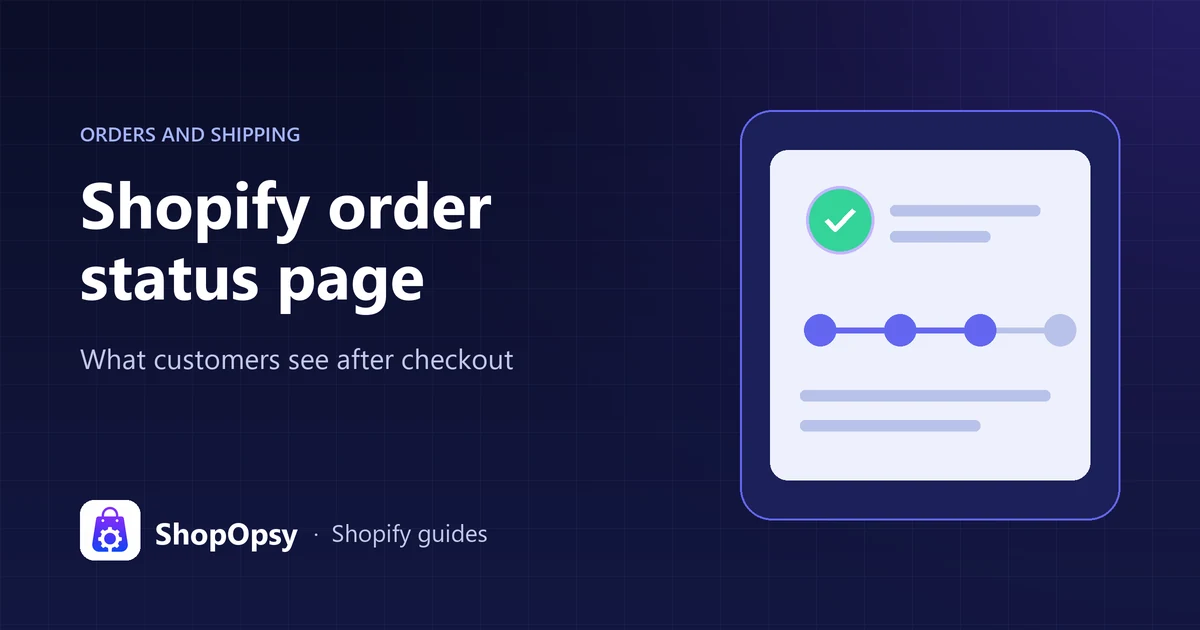
The Shopify order status page is where customers check an order after they buy. It shows the items, totals and order status, and once you add a tracking number it shows the delivery status, with a live map for supported carriers. The thank you page is its one-time sibling: it appears right after checkout and never again, so every later visit, from an order email or the customer's account, opens the order status page.
You customize both pages in the checkout and accounts editor (Settings > Checkout, then Edit on your configuration) with branding settings and app blocks. The old Additional scripts box no longer runs code: non-Plus stores had to upgrade by 26 August 2026, and tracking now runs as pixels in Settings > Customer events.
This guide is for merchants, and the steps follow Shopify's Help Center as of October 2026. Shoppers looking for an order should use the link in their order email or sign in to the store's customer account; our Shopify order tracking guide covers that side.
How is the order status page different from the thank you page?
Shopify's developer guide to both pages calls the thank you page the customer's first purchase confirmation; when they come back later, they see the order status page instead. Shopify's upgrade overview adds that the thank you page shows a confirmation number rather than an order number, and that customers can't revisit it.
| Question | Thank you page | Order status page |
|---|---|---|
| When customers see it | Once, right after checkout | Any time later, from emails, texts or their account |
| Can they go back to it? | No | Yes, as many times as they need |
| Is the order created yet? | Not yet when it first displays; it shows a confirmation number | Yes, always |
| Where you customize it | Checkout and accounts editor, Thank you page | Checkout and accounts editor, Order status page |
| Where it lives | Your checkout, at a /checkouts/.../thank-you URL | Customer accounts, on shopify.com or your account subdomain |
The URL row comes from Shopify's Google Tag Manager replacement guide for the thank you page, and from the customer account UI extensions docs, which list the order status page among the pages in customer accounts.
The split decides where content belongs. Anything customers should see once, such as a post-purchase survey or a referral offer, goes on the thank you page. Anything they need when they come back, such as delivery details, return instructions or a support contact, goes on the order status page, or on both.
If a customer contacts you with only a confirmation number, Shopify's confirmation numbers guide says you can paste the full number into the admin search or the Filter orders field on the Orders page to find the order.
What does the Shopify order status page show?
Shopify's order status page guide describes these parts:
- Order summary. Items purchased, order total, discounts and order status. Anyone with the link sees this much.
- Private details. Name, shipping and billing addresses, payment method, shipping method and tracking number. The customer sees these from their email link within its time limit, or after signing in or verifying the order, as explained below. A shared link shows only the summary.
- Live shipping status. For supported carriers, the status updates in real time and the parcel's location appears on a map.
- Carrier link. For carriers Shopify doesn't support, the tracking number links to the carrier's website. The page doesn't show the status, and the map pin doesn't update in real time.
- One section per shipment. Partial fulfillments, including ones sent with different carriers, each get their own section.
The live status moves through five values:
| Status | What it means |
|---|---|
| Confirmed | The order exists, but the carrier hasn't reported it in transit |
| On its way | The carrier reports the shipment in transit |
| Out for delivery | The parcel is out for delivery |
| Delivered | The customer has received the shipment |
| Attempted delivery | The carrier couldn't complete delivery |
Orders fulfilled without a tracking number stay on Confirmed, so mark them as delivered yourself once the customer has them. Our guide to the Shopify tracking number covers adding and fixing numbers.
Depending on your settings, the page can also show:
- Estimated delivery dates. Shopify's delivery dates overview says delivery estimates appear in order confirmation emails and on the Thank You and Order Details pages after checkout. It doesn't name the order status page, so place a test order to see how estimates display on yours.
- A Buy again button. Shopify's customization options page says the order status page includes it by default, and a May 2025 update made it possible to turn it off.
- A Track with Shop button. Shopify's delivery tracking guide says it shows when Show a link for customers to track their order with Shop is selected under Settings > Checkout > Customer contact method. The setting is on by default.
- Return and cancellation requests. With self-serve returns turned on, signed-in customers click Return items, Cancel items or Cancel or return, depending on what the order allows.
- An email opt-in. The order status page guide says you can give customers who checked out with a phone number the choice to opt in to order and shipping updates by email.
How do customers get to the order status page?
From order emails and texts
Shopify's order status updates guide says the Order confirmation, Shipping confirmation and Shipping update email templates can include a link to the order status page, and the SMS templates include the link. Shopify can't add the link to a template you have customized. You can either revert the template to Shopify's default, which deletes your edits and can't be undone, or add the {{ order_status_url }} variable to the template yourself. To check, open each template in Settings > Notifications: a revert button at the bottom means it has been customized. That guide calls it Revert to default, while Shopify's template guide describes Revert to, then Default, then Save.
The order status page guide says customers who check out with a phone number get the order confirmation by SMS, and that order and shipping updates aren't sent by SMS. For them, the link in that first text is the way back. Our guide to Shopify notifications covers which customer emails to review first.
From their customer account
Signed-in customers can open the full order status page for each order. Customer accounts use a one-time 6-digit code sent by email instead of a password, according to Shopify's customer accounts overview. To show the sign-in links, follow Shopify's customer accounts setup guide:
- Go to Settings > Customer accounts.
- In the Sign-in links section, turn on Show sign-in links.
- Click Save.
The order status page guide notes that these links don't appear on stores still using legacy customer accounts.
How long does the email link work?
Customers can open the page from the confirmation email without signing in for 3 weeks in the same browser, or for 2 weeks across up to 5 browsers. After that, the page shows a Log in to view all order details prompt: the customer signs in, or enters the order number and the email or phone number used at checkout. Until they do, only the limited summary shows.
How do you view a customer's order status page?
Open the order from Orders and click More actions > View order status page. You'll see only the limited details, because the page protects customer information.
Which domain does the order status page use?
By default, account pages sit on shopify.com followed by your store ID. Shopify's guide to connecting a customer accounts domain moves them to a subdomain such as account.example.com: click Change domain in Settings > Customer accounts, then make the subdomain the primary customer account domain in Settings > Domains. Verification can take up to 48 hours. The order status page switches to the subdomain once it's primary, even on legacy accounts. As covered below, this also matters for tracking.
How do you customize the order status and thank you pages?
Both pages are edited in the checkout and accounts editor, not the theme editor. Shopify's checkout customization overview says standard customizations, including eligible apps for the thank you and order status pages, are available on the Basic plan or higher.
How do you open the editor?
Shopify's editor guide gives this route:
- From your Shopify admin, go to Settings > Checkout.
- In the Configurations section, click Edit next to the configuration you want to change.
- Click the page selector in the top bar and choose Thank you or Order status.
- Make your changes and click Save.
To test without touching the live pages, work on a draft. Shopify's active and draft configurations guide says to click the menu icon next to the active configuration and choose Duplicate, preview the draft from the Drafts section, then click Publish to swap it in. Basic, Grow and Advanced stores can keep up to 20 drafts, and Plus stores up to 99.
How do you change the logo, colors and fonts?
The Settings sidebar (the Settings icon) holds the branding options in Shopify's checkout style guide:
- Logo: click the image field, then Select from library, and set the width and alignment if needed.
- Colors: set the palette and the header, main, accent, button and order summary colors.
- Typography: pick heading and body fonts.
The header sits at the top of every checkout and customer account page, so header changes carry across the whole post-purchase experience. Since 5 February 2026, you can't add new background images to the header or main area. Shopify's customization options page says the default text on both pages is translated into several languages by default, and that you edit that text in your theme content editor rather than the checkout and accounts editor.
How do you add app blocks?
App blocks are how you add content such as surveys, banners, upsells or delivery messages. Shopify's checkout apps guide gives two routes. From the Sections sidebar:
- In the editor, select the Thank you or Order status page.
- Click the Sections icon.
- Click Add block in the section where the content should appear.
- Choose the block, then drag it into position or click it to adjust its settings.
- Click Save.
From the Apps sidebar, click + next to a block, choose the page in the Add to pop-out, configure it and click Save.
Rules worth knowing before you plan a layout:
- Each highlighted area holds a maximum of 3 apps.
- Some blocks fit only certain areas, which are grayed out while you drag.
- Some blocks can be added only once.
- Remove block takes a block off the page, but the app stays installed until you uninstall it.
To find apps that support these pages, search the Shopify App Store, then click Refine > Customizes checkout > Apply. Shopify's own free Checkout Blocks app is one option; on non-Plus plans some of its features are restricted.
Which built-in settings should you check?
- Buy again: in the editor's Settings sidebar, the checkout style guide places an Allow customers to reorder control in the Buy again button section. Turn it off if reorders don't suit your products.
- Track with Shop: Settings > Checkout > Customer contact method.
- Self-serve returns and cancellations: in Settings > Customer accounts, turn on Self-serve returns and cancellations and pick Return and cancel requests, Return requests only or Cancel requests only. It doesn't work with legacy customer accounts, and your return rules decide which items qualify. Our refund policy template helps you write the rules down.
Which Shopify plan do you need?
| Customization | Plan |
|---|---|
| Checkout and accounts editor, branding, apps on the thank you and order status pages | Basic or higher |
| Apps on the information, shipping and payment pages | Shopify Plus |
| Checkout Branding API | Shopify Plus |
| Draft configurations | 20 on Basic, Grow and Advanced; 99 on Plus |
Shopify's March 2026 update lets Advanced and Plus stores customize checkout and customer accounts by market, but the customization options page still says per-market customizations aren't supported on the thank you and order status pages. Check the editor before you plan market-specific content there.
What happened to additional scripts on the order status page?
The Additional scripts box in Settings > Checkout used to let merchants paste code into the thank you and order status pages, such as conversion tags, surveys and tracking widgets. That route is closed. The dates, from Shopify's upgrade overview, its non-Plus upgrade guide, its order status script tag timeline and its script tag deprecation overview:
| Date | What changed |
|---|---|
| 28 August 2025 | The additional scripts section became view-only. Script tags stopped running on the order status page for Shopify Plus stores. |
| 26 August 2026 | Deadline for non-Plus stores to upgrade both pages. Stores that hadn't upgraded were upgraded automatically, and script tags stopped on the order status page for all other stores. |
| 1 October 2026 | Apps can no longer create or update script tags. |
| 1 March 2027 | Script tags on storefront pages are scheduled to stop running. |
Shopify's script review guide says additional scripts aren't supported on the new pages and that a disabled script can be re-enabled only before the pages finish upgrading. Each one has to be replaced with a built-in Shopify feature, an app or a pixel, or rebuilt as a custom app. If you inherited a store, check for anything that silently stopped:
| What the old script did | What to use now |
|---|---|
| Conversion or analytics tag (Google, Meta, TikTok and similar) | The platform's app pixel, or a custom pixel in Settings > Customer events |
| Google Tag Manager container | The Google & YouTube app, or a GTM custom pixel that listens for checkout_completed |
| Survey, upsell, banner or custom message | An app block from an app that supports the page |
| Tracking widget or order lookup | Shopify's built-in tracking on the order status page, or a tracking app's block |
| Reorder button | The built-in Buy again button |
| Return request link | Self-serve returns and cancellations |
| Something no app covers | A custom app: checkout UI extensions for the thank you page, customer account UI extensions for the order status page |
How do you track purchases without additional scripts?
Tracking moved to customer events. Shopify's pixels overview says app pixels and custom pixels, managed in Settings > Customer events, load automatically on the storefront, checkout, thank you page and order status page. Our guide to Shopify customer events walks through setting them up.
Points that affect your numbers:
- The purchase fires once. The
checkout_completedevent fires once per checkout, typically on the thank you page. With a post-purchase upsell, it fires on the first upsell page instead and doesn't fire again on the thank you page. If that page fails to load, it doesn't fire at all. Don't count order status page visits as purchases. - Consent applies. Shopify's script review guide says app and custom pixels track customer behavior only with consent, so you may see fewer events than the old scripts reported, because consent often wasn't set up properly in those scripts. See our Shopify cookie banner guide for the consent side.
- The account domain matters. If your store uses a custom domain, Shopify's script review guide says your customer account domain must be a subdomain of it, such as
account.example.com. Otherwise pixels and cookie consent won't work on the new order status page. - The URL changed. Shopify's Google Tag Manager replacement guide says the thank you page URL changed from
thank_youtothank-you, so update any goal or filter that matches the old path.
Our GA4 conversion tracking checklist helps you confirm purchases still reach Google after the switch.
How do you fix common order status page problems?
| Problem | Likely cause | Fix |
|---|---|---|
| Customer is asked to log in | The email link's time limit has passed | Sign in, or enter the order number and checkout email or phone |
| No address or tracking number shown | The customer isn't verified, or you're viewing from admin | Verify or sign in; admin always sees the limited view |
| Status stuck on Confirmed | No tracking number, or the carrier hasn't reported a scan | Add tracking, or mark the order as delivered |
| No map or live status | Carrier isn't supported | Customers follow the carrier link instead |
| Order email has no order status link | The template was customized | Revert it, or add {{ order_status_url }} |
| No sign-in link on the page | Sign-in links are off, or the store uses legacy accounts | Turn on Show sign-in links, or upgrade accounts |
| Old survey or widget disappeared | It ran as an additional script | Rebuild it with an app block |
| Conversions dropped after the upgrade | Consent, the URL change or a missing pixel | Check pixels in Settings > Customer events |
| Pixels don't fire on the order status page | Store uses a custom domain, but the account domain isn't a subdomain of it | Connect a customer accounts subdomain |
| App block can't be placed | Area holds 3 apps already, or the block doesn't fit there | Move or remove a block, or pick another area |
Frequently asked questions
Can I edit the order status page with Liquid or theme code?
No. The thank you and order status pages belong to checkout and customer accounts, which you customize in the checkout and accounts editor, separately from your theme. Custom code goes through apps built with UI extensions. The one theme link is the pages' default text, which you edit in the theme content editor.
Is the order status page the same as an order tracking page?
No. The order status page belongs to each order, and customers reach it through the link in their order emails or from their customer account. An order tracking page is a separate page in your online store, often added with an app, where customers look up a shipment by entering order details. The order tracking guide compares the options, including a "Track your order" menu link to customer accounts. ShopOpsy is also building an Order Tracking app that gives customers a tracking page in your store's design; it's in development and not yet on the Shopify App Store.
Sources
- Understanding order status pages — Shopify Help Center, accessed 26 October 2026.
- Setting up order status updates — Shopify Help Center, accessed 26 October 2026.
- Customizing email notification templates — Shopify Help Center, accessed 26 October 2026.
- Order confirmation numbers — Shopify Help Center, accessed 26 October 2026.
- Upgrading and replacing your Thank you and Order status pages — Shopify Help Center, accessed 26 October 2026.
- Non-Plus: Upgrading and replacing your Thank you and Order status pages — Shopify Help Center, accessed 26 October 2026.
- Reviewing and replacing additional scripts on your Thank you and Order status pages — Shopify Help Center, accessed 26 October 2026.
- Replacing Google Tag Manager scripts on the Thank you page — Shopify Help Center, accessed 26 October 2026.
- Customization options for the Thank you and Order status pages — Shopify Help Center, accessed 26 October 2026.
- Customizing and editing your checkout and accounts pages — Shopify Help Center, accessed 26 October 2026.
- Using the checkout and accounts editor — Shopify Help Center, accessed 26 October 2026.
- Customizing the style of your checkout — Shopify Help Center, accessed 26 October 2026.
- Adding apps to your checkout and accounts pages — Shopify Help Center, accessed 26 October 2026.
- Active and draft checkout configurations — Shopify Help Center, accessed 26 October 2026.
- Customer accounts — Shopify Help Center, accessed 26 October 2026.
- Setting up and managing customer accounts — Shopify Help Center, accessed 26 October 2026.
- Connecting a domain to customer accounts — Shopify Help Center, accessed 26 October 2026.
- Setting up self-serve returns and cancellations — Shopify Help Center, accessed 26 October 2026.
- Delivery tracking with Shop — Shopify Help Center, accessed 26 October 2026.
- Delivery dates overview — Shopify Help Center, accessed 26 October 2026.
- Pixels overview — Shopify Help Center, accessed 26 October 2026.
- About Thank you and Order status page customization — Shopify developer documentation, accessed 26 October 2026.
- Script tag deprecation — Shopify developer documentation, accessed 26 October 2026.
- Order status page script tags — Shopify developer documentation, accessed 26 October 2026.
- checkout_completed standard event — Shopify developer documentation, accessed 26 October 2026.
- Customer account UI extensions — Shopify developer documentation, accessed 26 October 2026.
- Buy Again button on Order status page and Orders page can now be hidden — Shopify Changelog, accessed 26 October 2026.
- Customize checkout and customer accounts by market — Shopify Changelog, accessed 26 October 2026.